We are thrilled to announce GearConnect v2 Beta! This is the biggest update to GearConnect since launch.
If you prefer a more interactive experience over these release notes, please check out our v2 Betalanding page. Or if you rather a quick 2 minute video overview, check out our announcement video.
We have been working with a number of customers over the last several months, combined with over 2 years of feedback, to help shape this next chapter of GearConnect.
Featuring a brand new design with a choice of 12 themes, more compact spacing, new ways to style your drawings, customizable layouts, a fully rebuilt selection experience, along with over a hundred improvements and fixes. v2 Beta will keep evolving with new features and we'd love to hear what you think!
You can try it today at beta-app.gearconnect.ca and you may wish to review the Known Issues at the bottom of this changelog before jumping in.
A Brand New Design
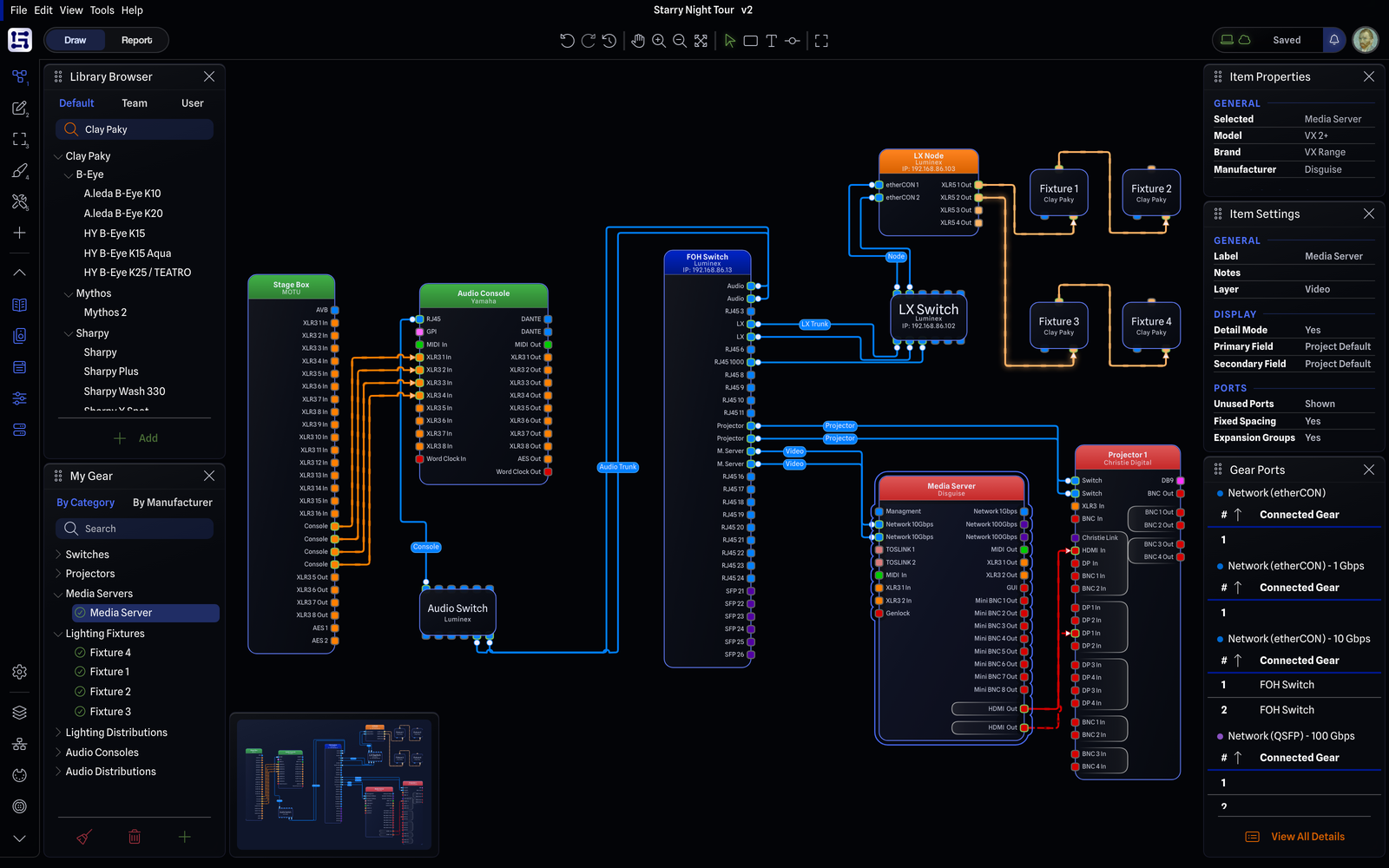
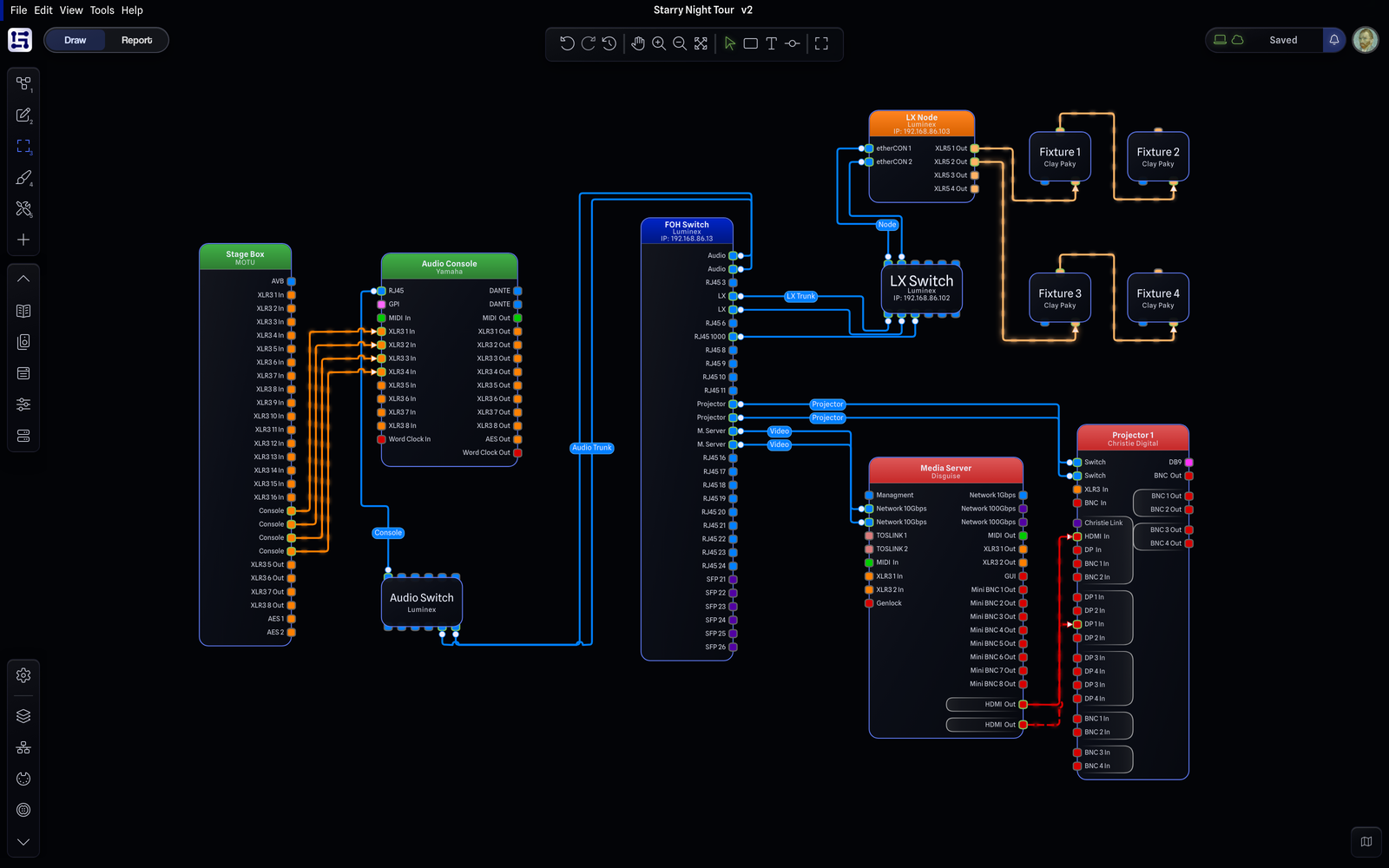
Every page in GearConnect has been redesigned around a more modern and flexible interface. We have tightened the spacing, removed dead space, and pulled colour back from the interface so it is used where it matters most: your drawing.
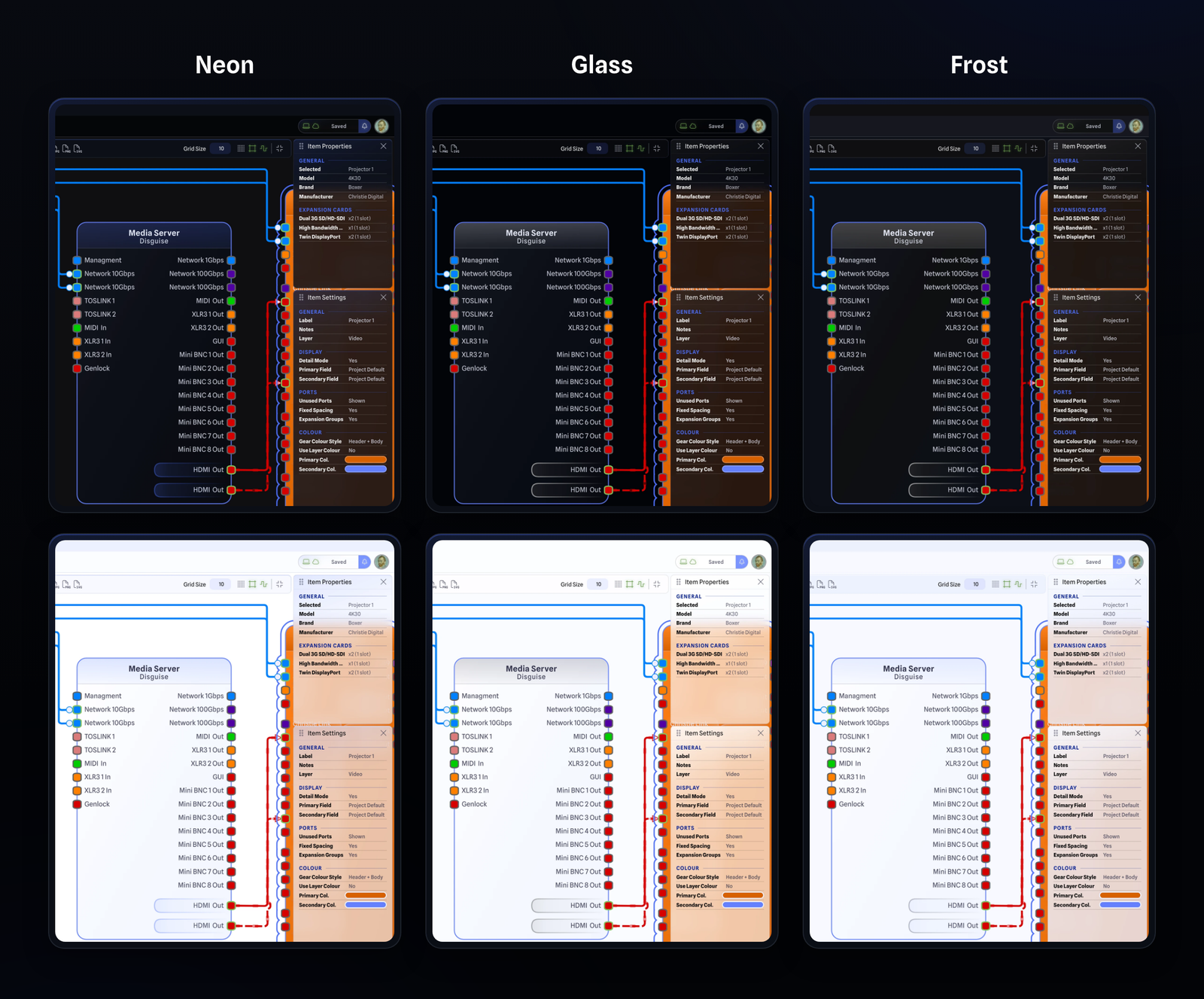
Design is subjective, and we've heard your feedback. We often get told everything from "The app looks amazing, it's the best looking system drawing app I've ever seen" to "The UI is weird". And while weird can be good, we think you should be able to choose what your version of weird is for yourself. We have added 12 styles to choose from (six appearances, each with a light and dark version).Three glass appearances are translucent, so your drawing shows through the panes and menus above it, a bit like looking through glass, for a modern sleek look:
Neon: translucent, blurred surfaces with a tint of colour running through them.
Glass: the same translucent surfaces but without the colour tint, giving a clear glass effect. This is the default.
Frost: a "frosted glass" version, where the surfaces sit closer to solid and less of the drawing shows through.
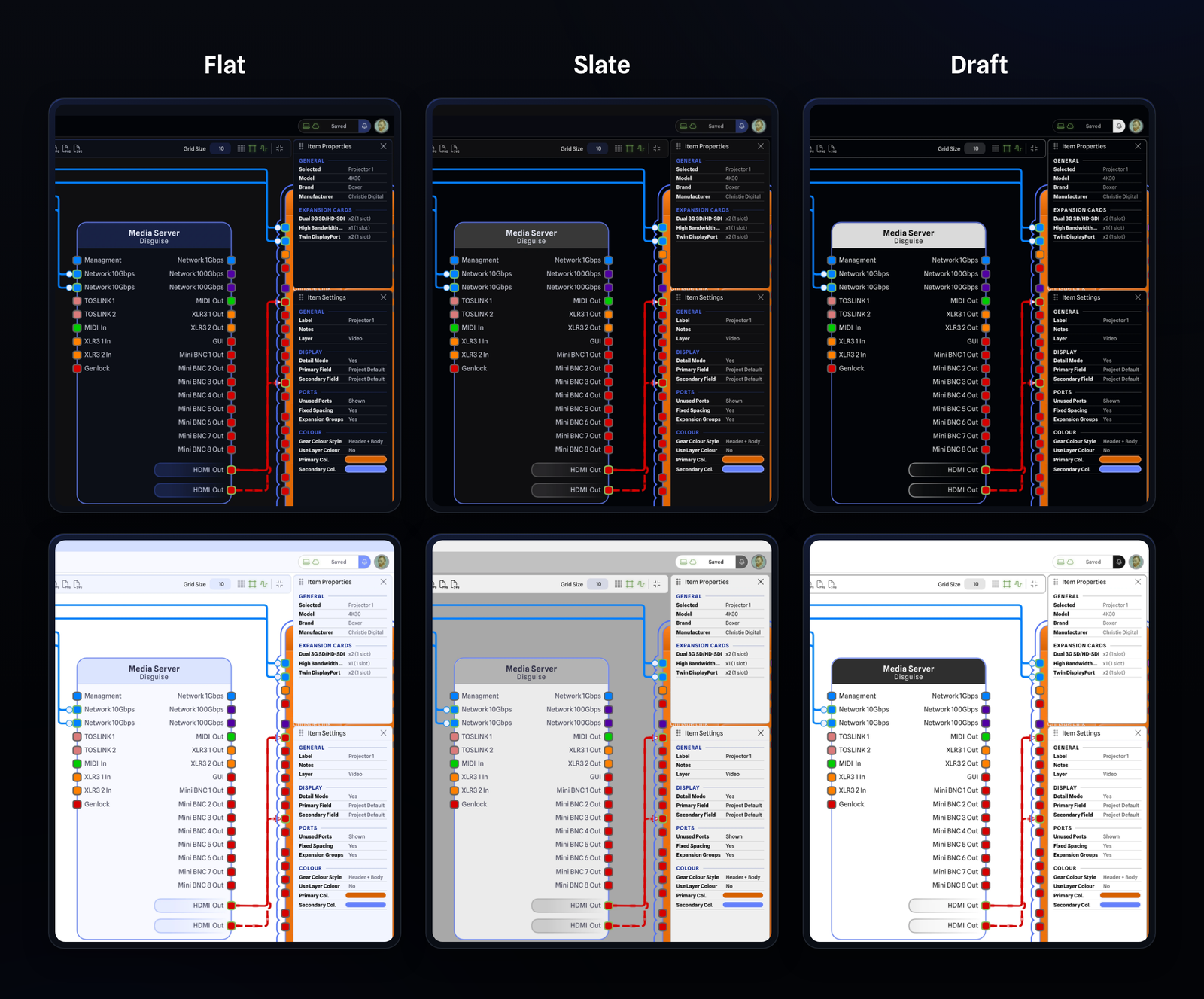
The three flat appearances provide a more minimal and professional look, if you don't fancy the glassy, translucent style:
Flat: clean, solid panes, menus and cards, with gear painted in single fills rather than gradients.
Slate: a polished, professional look in a neutral grey range, keeping the accent colour only for the controls that need it.
Draft: a stark, high contrast look in the spirit of classic CAD software, where a lot of the app becomes monochrome and utilitarian.
The first time you open a project in v2 Beta, the new Choose Your Style dialog shows a live preview of each theme (Automatic, Light or Dark) and each appearance so you can pick the style that suits you. You can change it any time from the Preferences tab in User Settings, and your choice is saved to your account so it follows you between devices.
A More Compact Workspace
The whole interface has been tightened up to give you more working space. You no longer need a 50" monitor just to view the app. Buttons, inputs, menus, corners, and every part of the interface has been tightened up to feel more compact and professional, with less dead space.
The Draw Toolbar now has a compact mode that shows only the most commonly used tools: undo and redo, pan and zoom, and the drawing modes. When in compact mode, it tucks itself away into the top bar, giving you even more space for your drawing.
Likewise, we have also tightened up the drawings themselves slightly, with smaller font sizes and slightly reduced port sizes. This makes the overall drawing feel cleaner, but please be aware when opening v1 projects in v2 Beta, your drawings will be upgraded to the new style resulting in a slight layout shift in some cases, and you may notice additional empty space at the bottom of your gear as the ports are slightly smaller.
Navigation Button
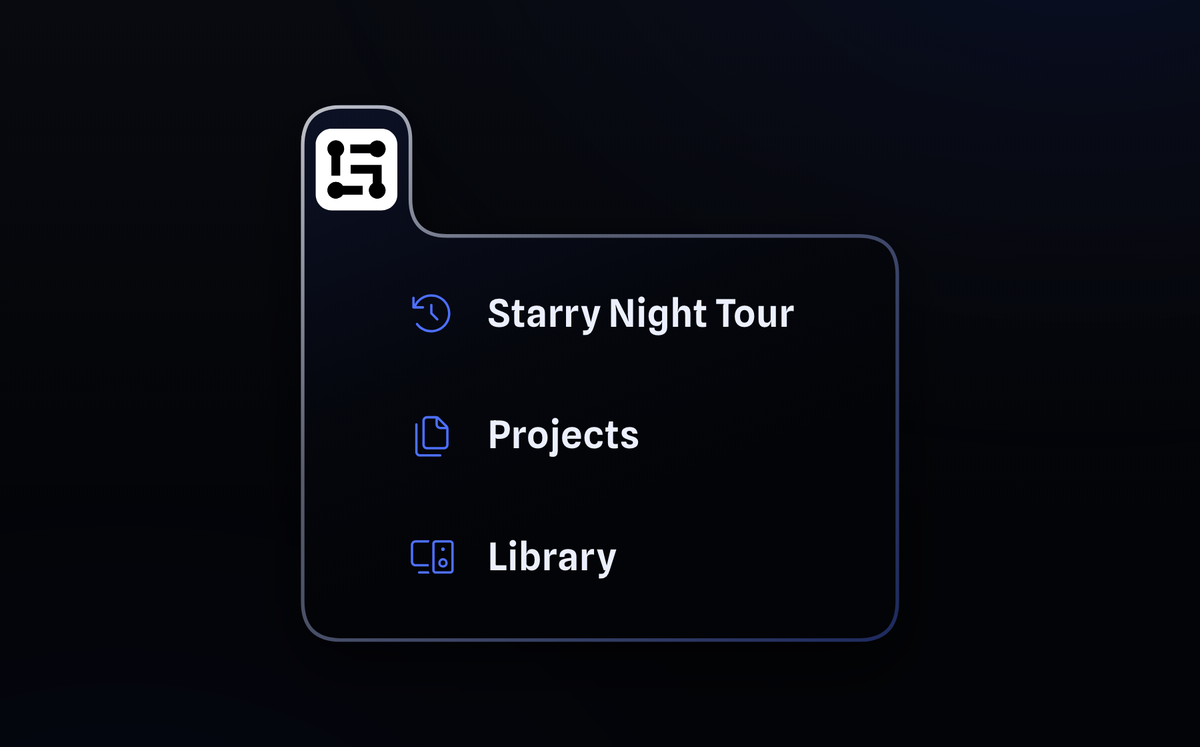
"I tried clicking the logo because it looked like a button, but it didn't do anything." Yeah, us too. We fixed that. The Projects/Library nav button has been moved into the existing top left GearConnect icon, making it more accessible and intuitive. We also added a button for your most recent project. It lets you return to whatever you were last working on from anywhere in the app.
The New Side Rail
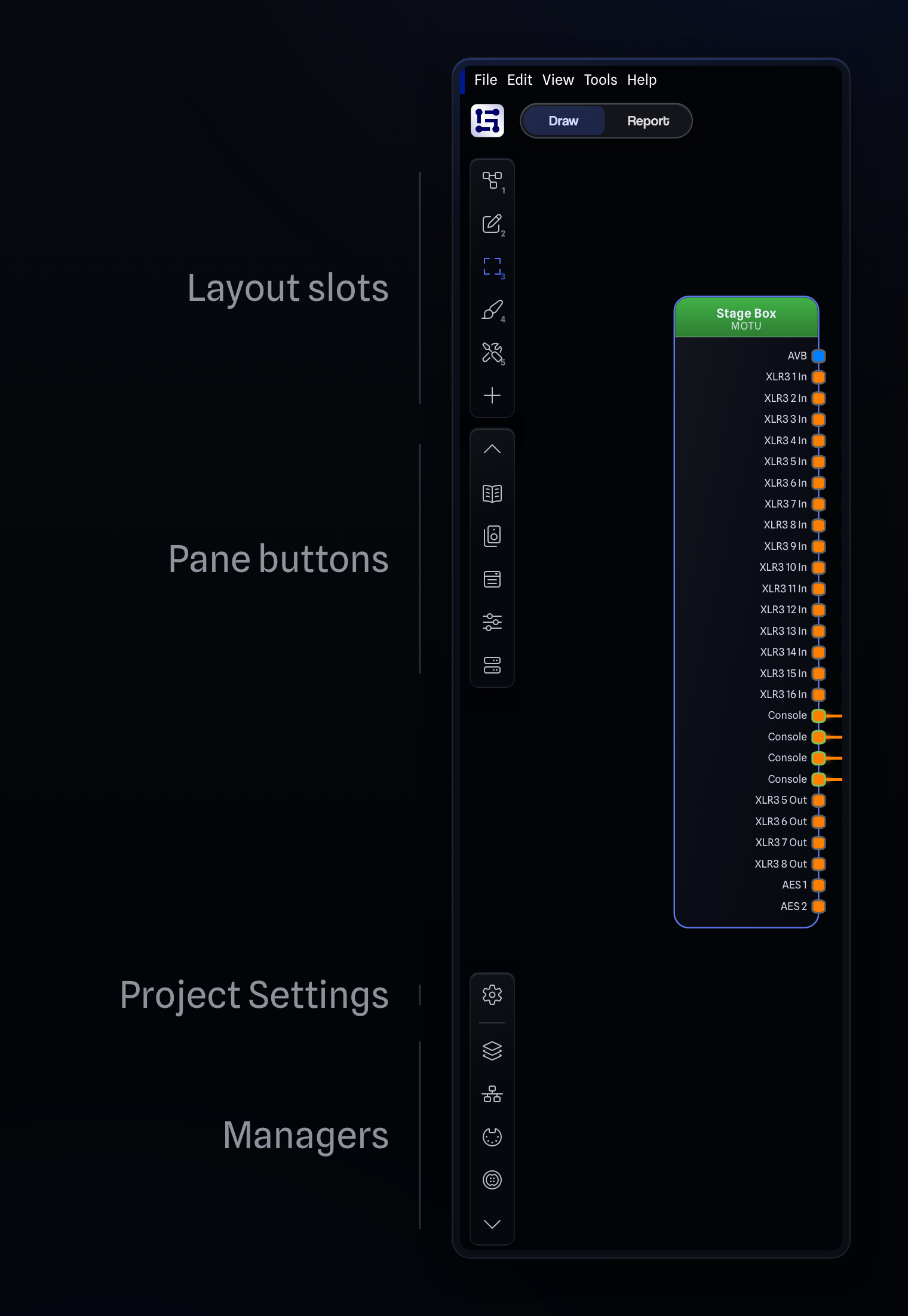
There is a new Side Rail that provides quick access to common actions. From top to bottom it offers:
Layout slots: up to six numbered slots for saving and switching between different pane arrangements (more on that below).
Pane buttons: easily open and close the different panes, based on if you are in Draw or Report mode.
Project Settings: quick access to the project's settings and configuration options.
Managers: moved from the top right bar, managers are now faster to access from the Side Rail.
Customizable Layouts
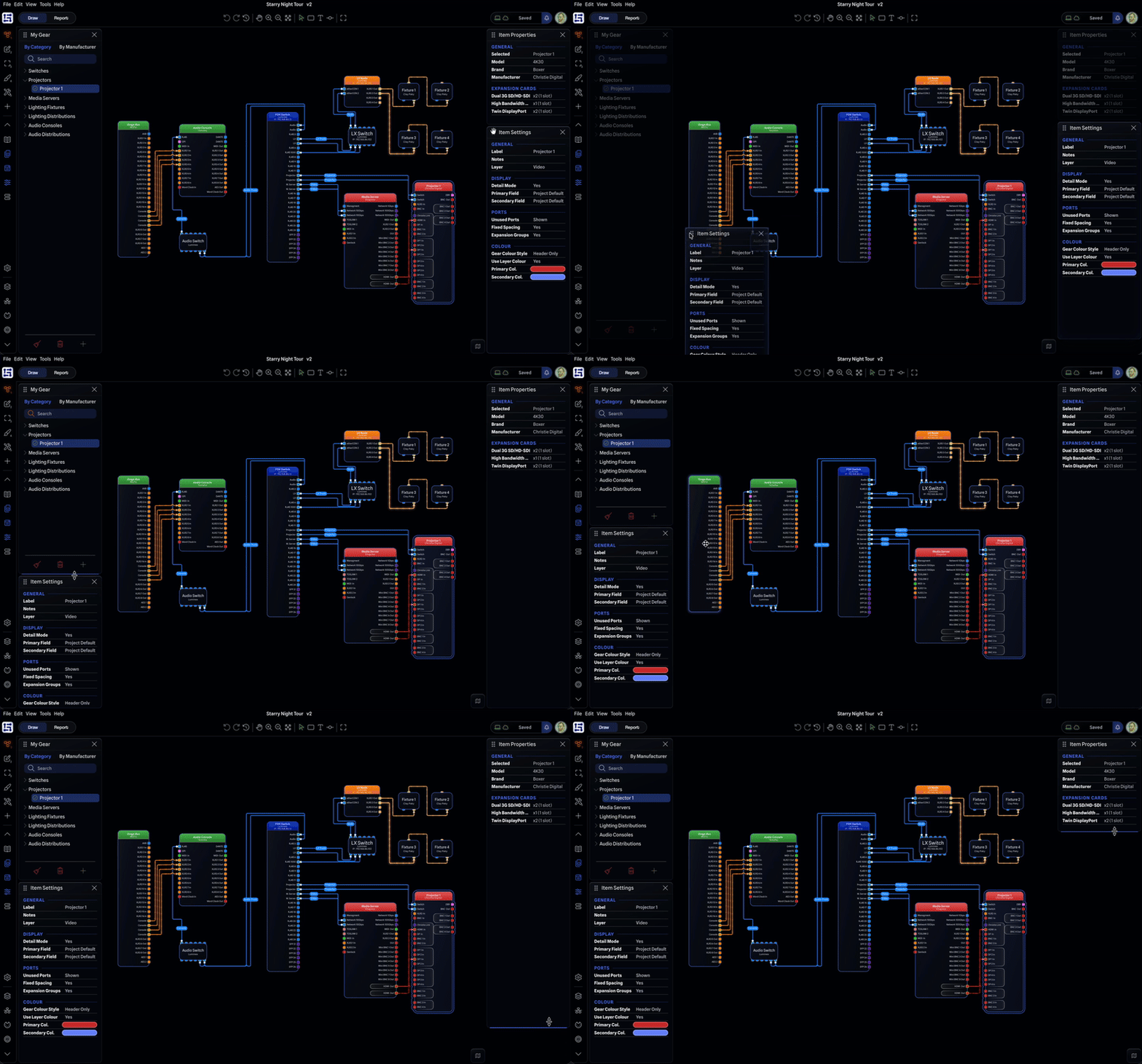
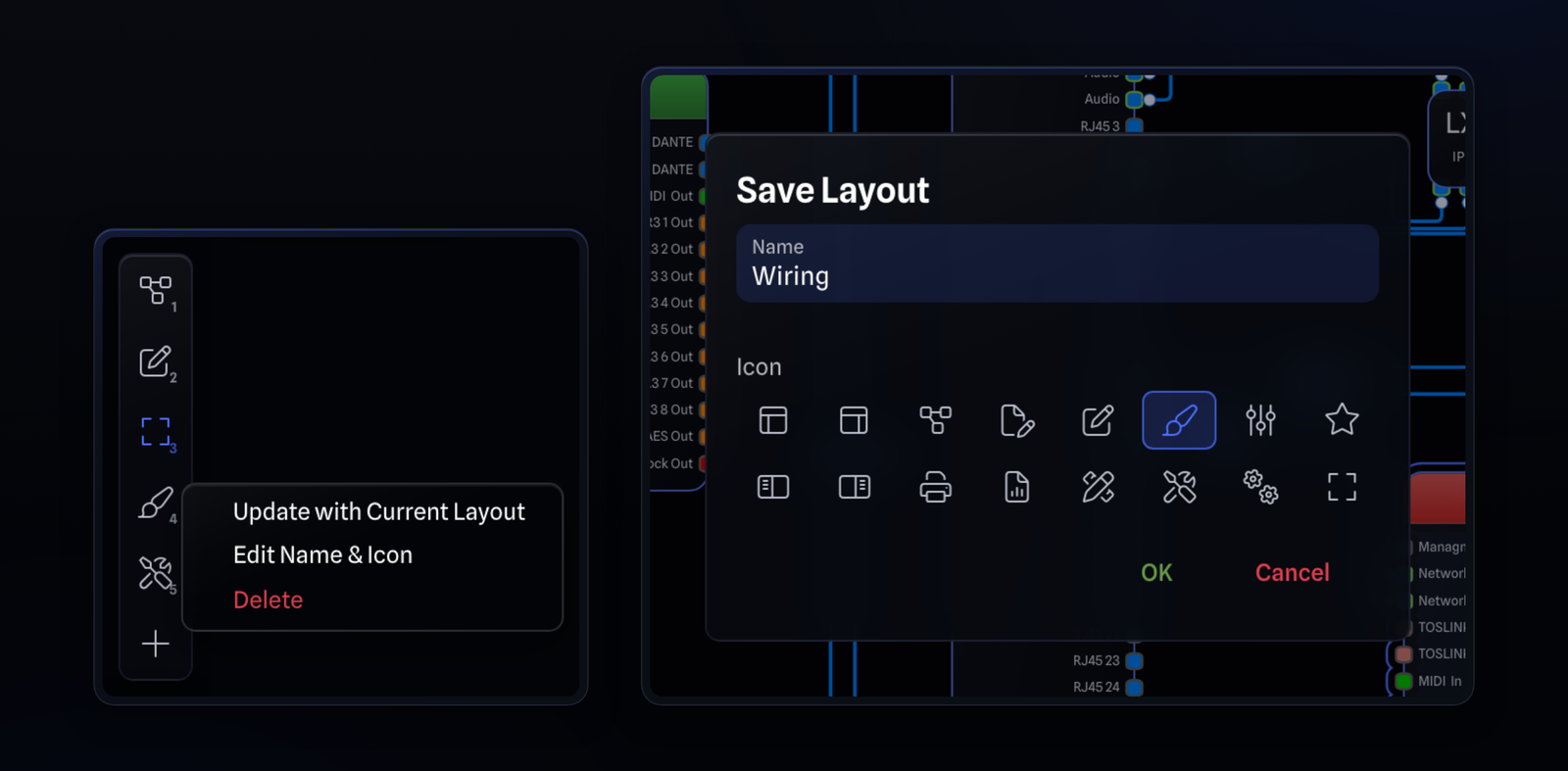
Every pane can now be moved and resized. Drag a pane by the grip in its title bar to reorder it within its column or move it to the other side of the drawing, and drag the boundary between two panes to change their heights. Close every pane on one side and the drawing expands into the space. You can even shrink up a pane so it doesn't need to take the full height of the window any longer. Once you have an arrangement you like, you can save it to easily recall later. The Side Rail holds up to six numbered layout slots per page on the Draw and Report Pages, so you can switch between setups with a single click. The Draw Page comes with Drawing, Editing and All Closed layouts to start from, and you can right-click any slot to update it, rename it or change its icon. Your layouts are saved to your account, so they follow you between devices. You are free to edit the stock layouts or create entirely new ones to suit your workflow. You can always reset to the stock layouts from the View menu at any time.
Hello Mini Map
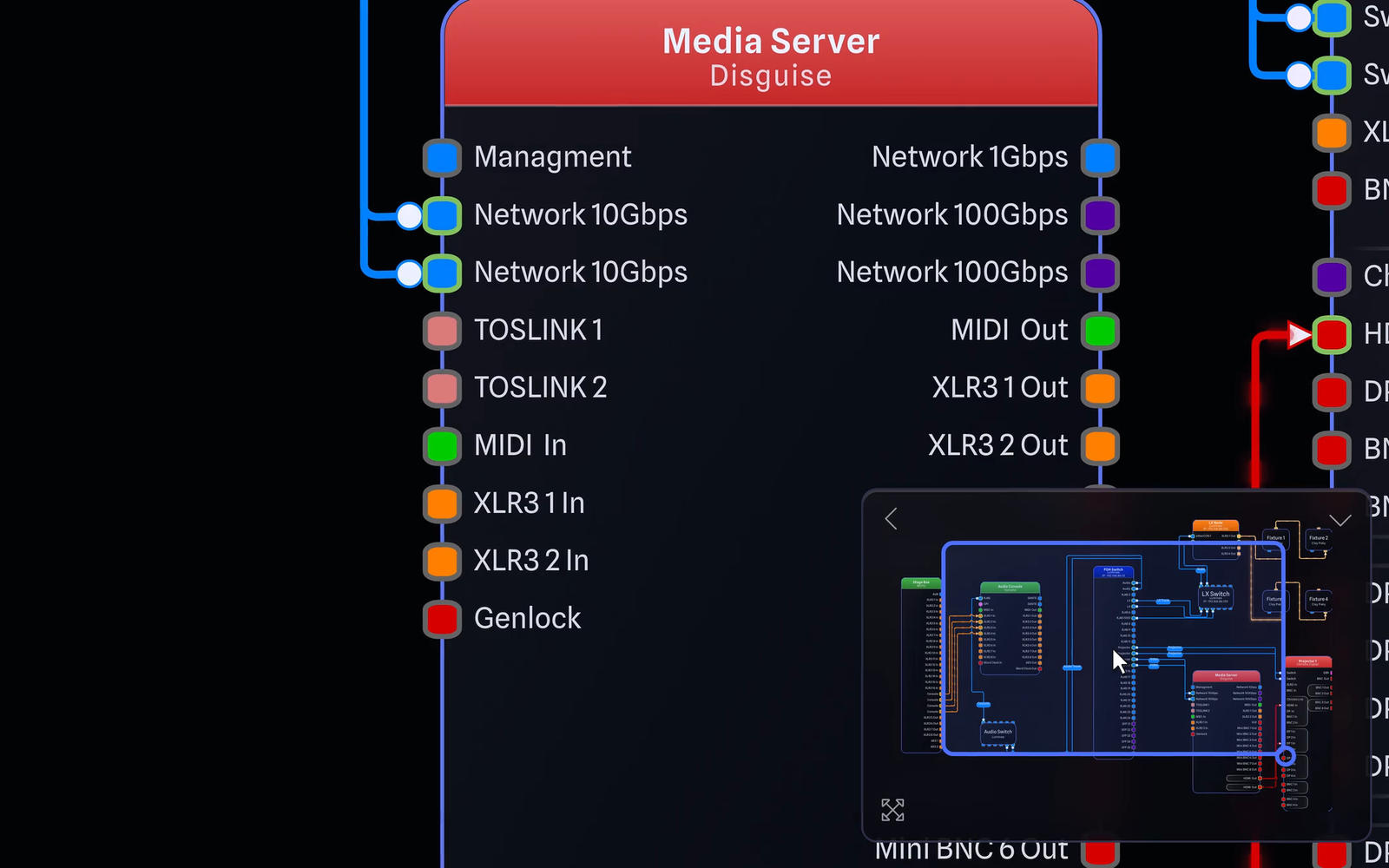
The Draw Page has a new Mini Map, a thumbnail of your whole drawing for faster navigation. Drag the view box or click an area to move around, scroll over it to zoom, or use Zoom to Fit to frame everything. You can place it in either the left or right bottom corners, and collapse it to a small button when you do not need it.
When your panes are full height, it will sit next to the pane columns, but when it's given enough room it will slide over to the far edge of the screen giving you more drawing space.
Sync Status Pill and Activity Bell
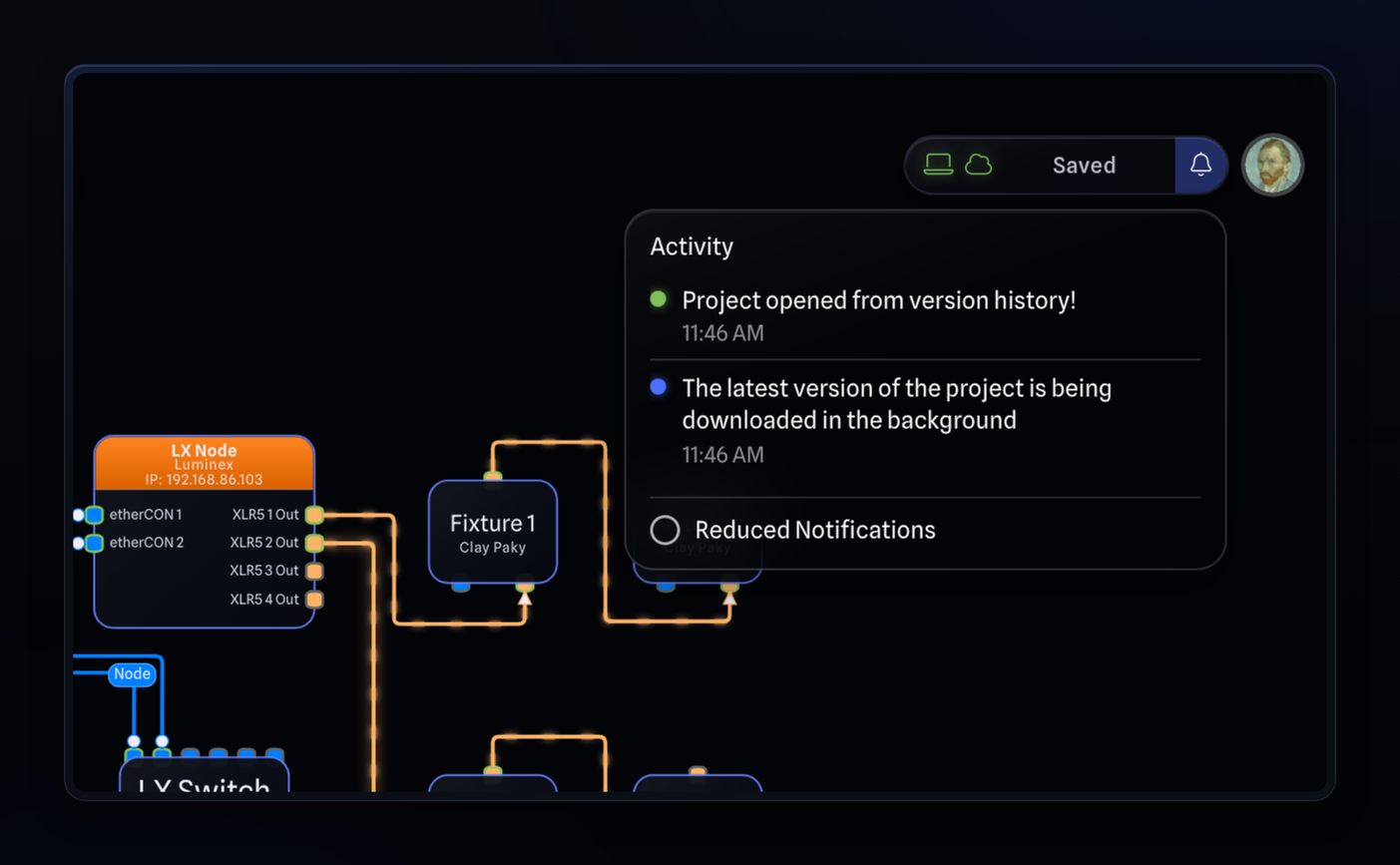
All of your project save and sync information now lives in one place. The new Sync Status Pill in the top right of the header shows a status icon for your local save, a status icon for the server and your version history, and a short status such as Saved, Syncing 45%, Sync pending or Offline. Hover over either icon for the full detail, click the laptop icon to save straight away, click the cloud icon to open Version History, or click the pill itself to run a full save and sync.
During saving and project sync, a new animated progress indicator appears within the Sync Status Pill, giving you a visual reference of how far along the process is.
At the end of the pill sits the new Activity Bell. Every notification the app shows you is recorded there, so a message you might have missed is still accessible. And if all the success notifications are too annoying while working, you now have the option to silence them via the new Reduced Notifications setting. Warnings and errors still appear, and every success message is still listed in the Activity Bell.
Adaptive UI
To give you even more room to work, the UI adapts to what you have open. While a pane is open on the left, the Side Rail and the top bar sit together in one solid frame, acting like a border around the drawing/report area. When you close the panes on the left, the Side Rail and top bar morph into a floating glass style: the frame disappears and they break apart into small glass bubbles over your work. The drawing runs underneath them, giving you even more drawing space and turning the page into a clean view, perfect for focused work or presenting.
This style activates whenever there are no left panes, so if you prefer to always use the floating glass style, you can arrange your panes on the right and save them as custom layouts, replacing the default layouts.
Style Your Drawings
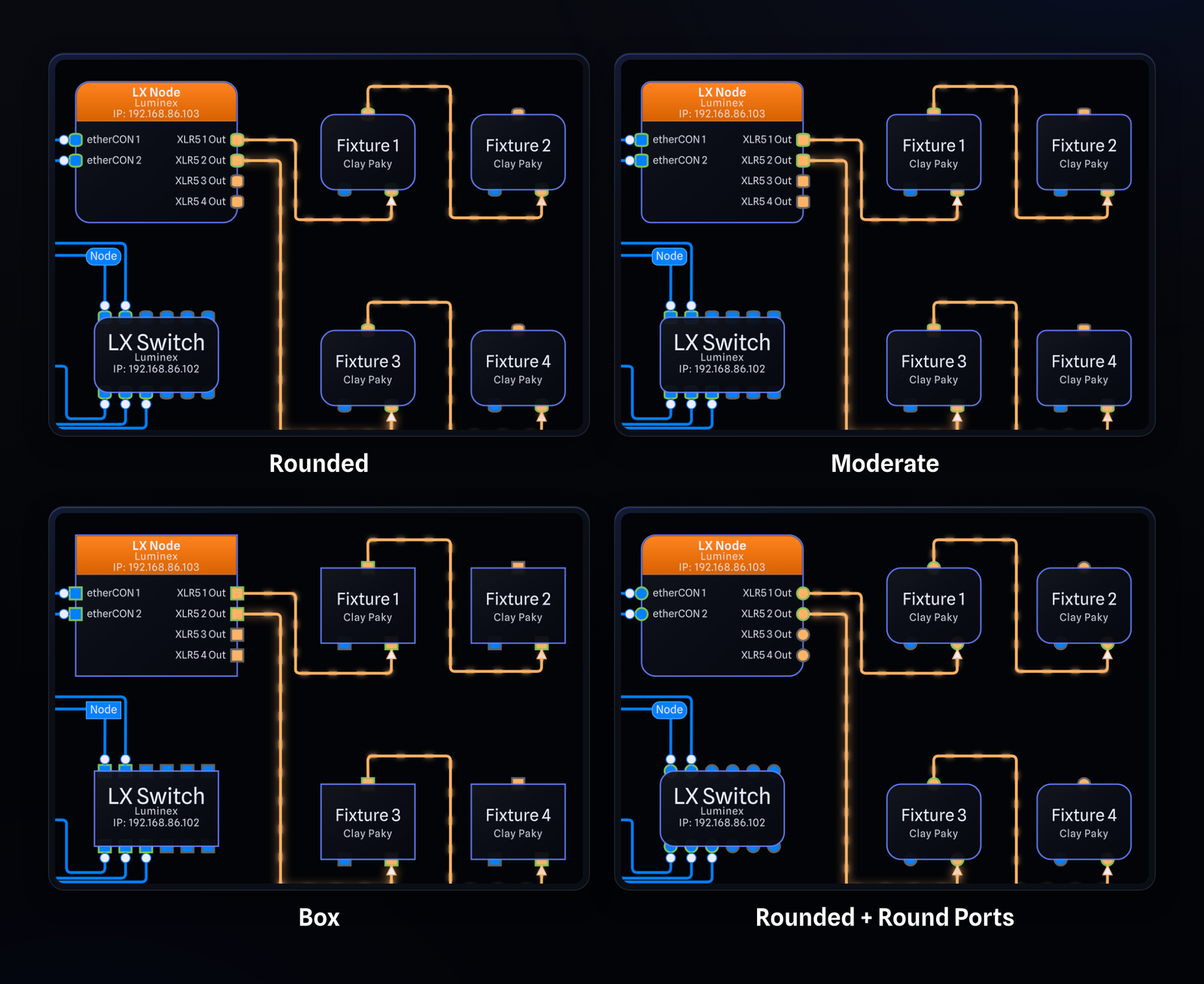
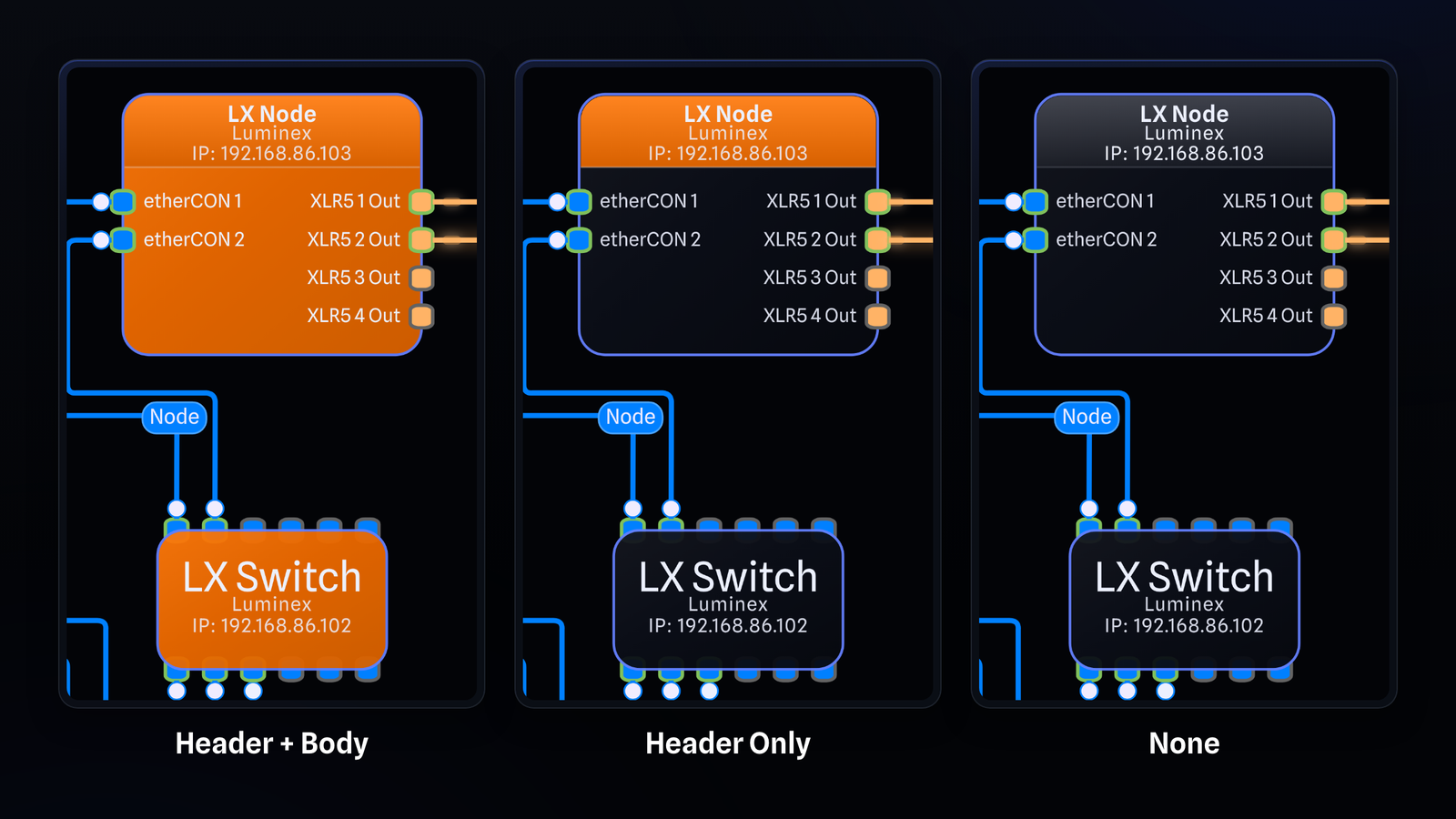
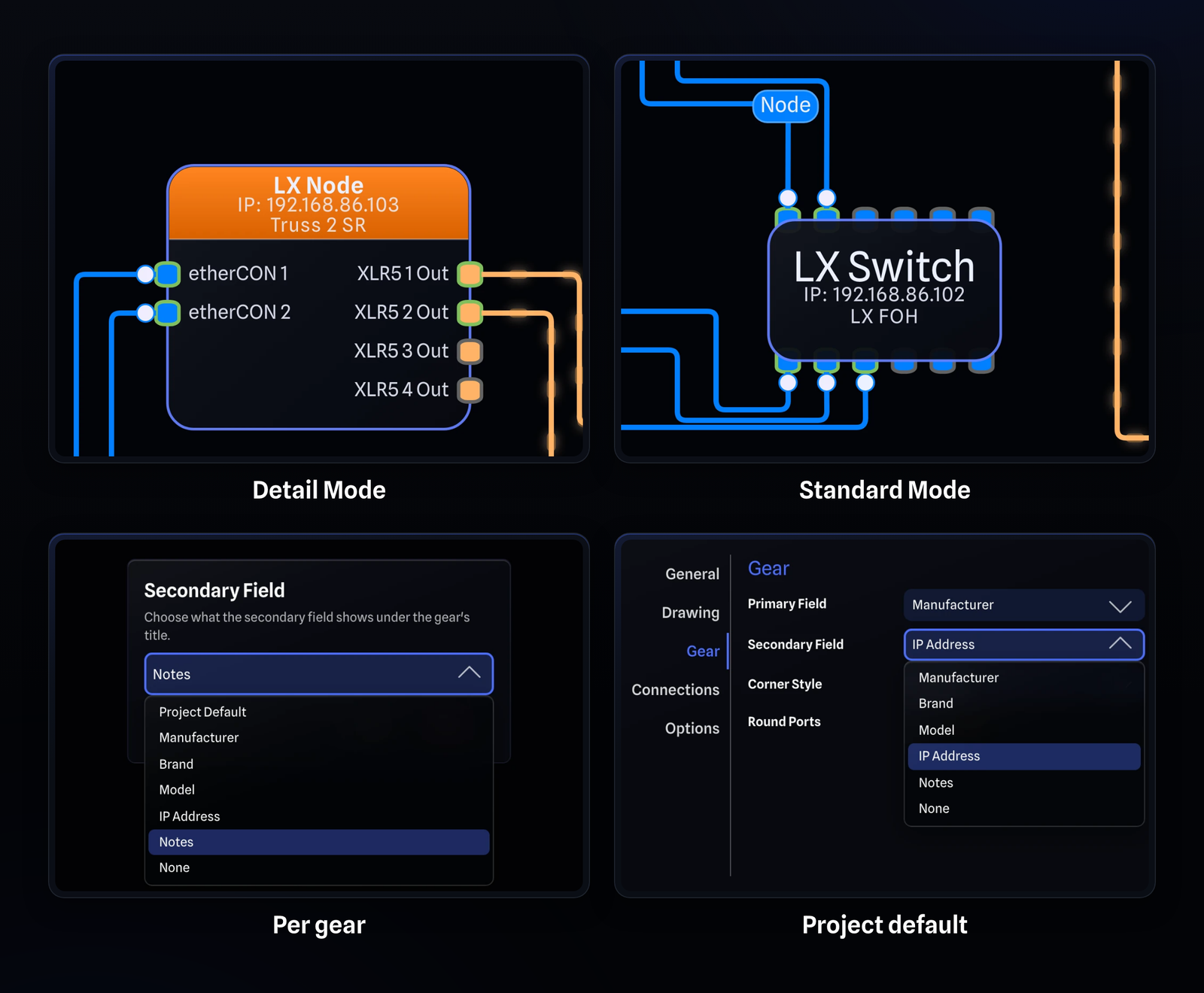
We have added several new ways to customize your drawings as well.The new Corner Style option in Project Settings controls how boxy your drawing looks. Choose Rounded (the default), Moderate or Box, and every item in your drawing updates accordingly: gear, gear groups, ports, connection labels and text boxes. Rounded and Moderate can also be paired with the new Round Ports option for circular ports. These settings are saved per project rather than to your user like the above appearance settings.Detail Mode gear has a new look with a header that centers the text. A new Gear Colour Style setting lets you customize how colour is used:
Header + Body: this is the classic GearConnect v1 look where the entire gear item is coloured in your chosen colour. Any projects opening in v2 Beta will default to this mode.
Header Only: a new style where only the header is coloured and the body follows your dark/light theme.
None: fully colourless gear, where the header also follows your dark/light theme.
Standard Mode gear has no header, so it offers Body and None. You can set the colour style per gear from Item Settings or the right-click menu.
Data Fields, Right on the Gear
Pro/Team users can now choose two optional fields that will display under the label in the header in Detail Mode gear or the body in Standard Mode gear. The new Primary Field and Secondary Field settings offer Manufacturer, Brand, Model, IP Address, Notes or None. These can be set with with project wide defaults in Project Settings or per gear in Item Settings. All settings will update in real time as you make changes as they are synced from your project's live database.
Existing projects opened in v2 Beta will default to None for both fields, whereas new projects will default to Manufacturer and Notes for Pro/Team users.
Redesigned Item Selection
Selection in the drawing has been completely rebuilt from the ground up for a consistent, and uniform experience across all menu levels.
First, we have renamed some of the existing panes to better reflect the new selection updates:
Gear Properties is now Item Properties.
General Settings is now Item Settings.
Gear Config is now Gear Ports.
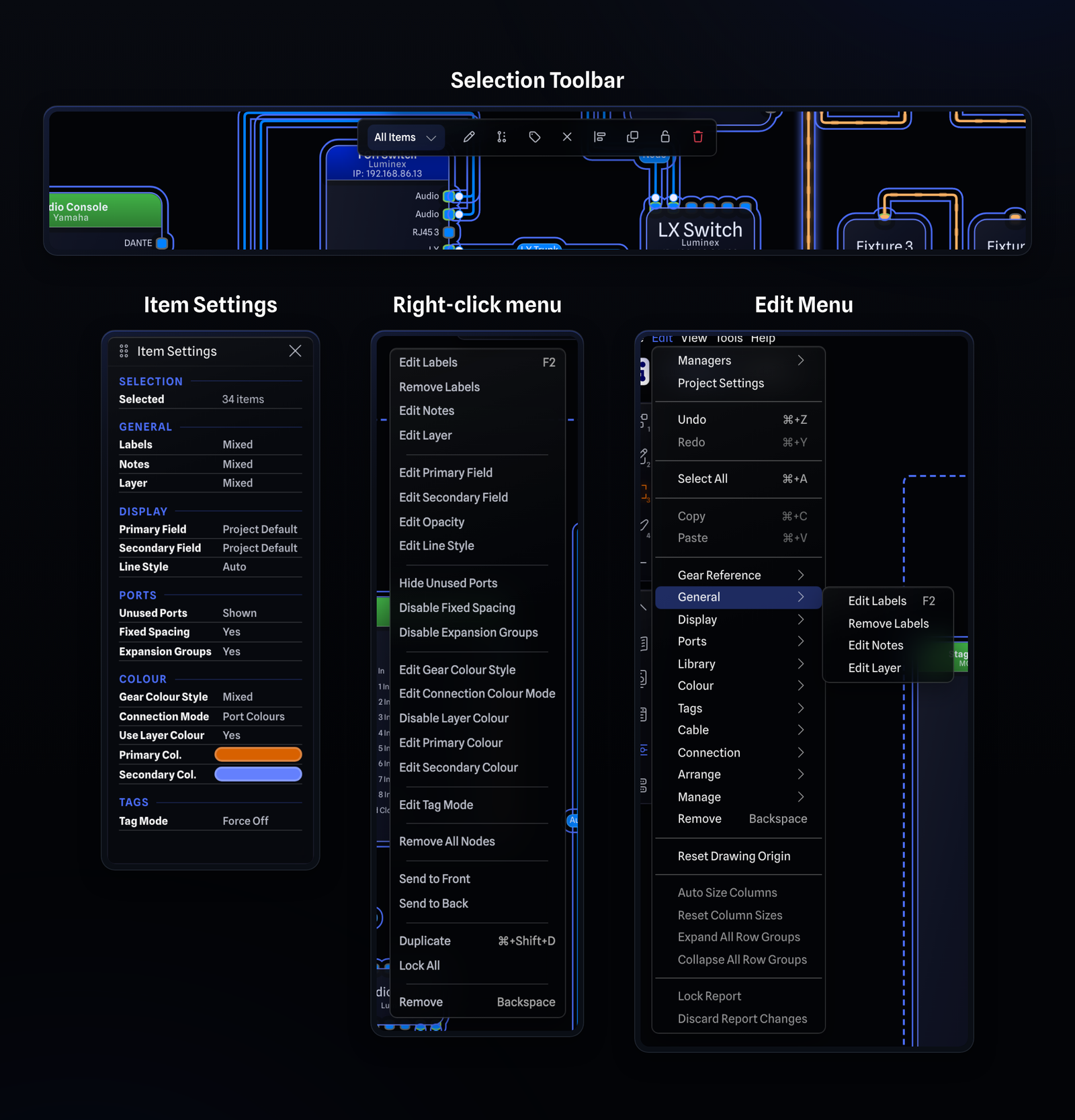
Item Properties and Item Settings have been rebuilt to reflect the new uniform nature of the selection system, grouping related settings together, and now fully support multi-selection, gear groups, text boxes and connections. Before, multi selecting items would result in these panes disabling, whereas now, not only do they remain active, they dynamically update to display the current selection, the settings that apply to that selection with their current values which include a new mixed state if they differ. This provides a true properties‑panel experience, familiar from many professional applications.All actions that can be taken on items in the drawing are now organized, consistently presented, and applied across all levels of the app. Filtered selection now works everywhere, not just the Selection Toolbar, keyboard shortcuts work on your current selection, the Edit Menu applies to your current selection, every single action now received a multi action counterpart, and more.
A few examples of the productivity gains this unlocks:
Bulk edit Text Box opacities in one action.
Change the colour of every single item in your drawing at once.
Filter your selection to connections only and press backspace to delete just those lines.
Quickly see mixed setting states in the Item Settings.
Hide unused ports across several (or all) items at once.
Item Settings, the right-click menu, the Selection Toolbar and the Edit Menu now all share the same options, order and grouping, so an action is always where you expect it to be, no matter how you like to work.
Coming Next in the Beta
Print Mode is the next major feature planned for the GearConnect v2 Beta. It will add multiple drawing pages, paper sheets on the canvas, new Drawing Settings and Export Settings panes, and multi-page PDF export. Keep an eye out for updates!
New Port Options
Connector Compatibility
USB-A can now be connected to USB-B without an adapter.
Default Library Updates
Thank you to everyone who has submitted and requested library items! This release adds 40 new items to the Default Library:
Adder
XDIP
XDIP-POE
Advatek Lighting
A4-S Mk3 - Expanded (8 x 3U)
A4-S Mk3 - Standard (4 x 6U)
E16-S Mk3 - Expanded (32 x 3U)
E16-S Mk3 - Standard (16 x 6U)
E4-S Mk3 - Expanded (8 x 3U)
E4-S Mk3 - Standard (4 x 6U)
R1F-S - Default / T16X
R1F-S - Expanded / T16X
R2F-S - Default / T8
R2F-S - Expanded / T16X
R4D-S - Expanded / T8
T16X-S Mk3 - Default (R1)
T16X-S Mk3 - Expanded (R1/R2)
T8-S Mk3 - Default / R2F
T8-S Mk3 - Expanded / 4x R4D
Blackmagic Design
Blackmagic Streaming Decoder 4K
Blackmagic Streaming Encoder 4K
Blackmagic Streaming Encoder HD
Blackmagic Web Presenter 4K
Blackmagic Web Presenter HD
NEXO
CD12
GEO S805
GEO S830
NX241 Digital TDcontroller
NX242 Digital TDcontroller
RF Venue
4ZONE
COMBINE4
CP Stage
D-OMNI
DFIN
DFIN-IPX
DISTRO4
RF-PA
RF-PA-RX
Shure
P9T
Yamaha
T3n
T4n
T5n
Improvements
Connections can now be sent to the front or back, which controls which line hops over the other where two connections cross.
A new Select Cursor Mode shows clearly which mode you are in at all times (compared to existing modes like Gear Group Cursor Mode).
After placing a Gear Group or Text Box, the drawing now returns to select mode. Hold Shift while placing them to stay in that mode.
Press Ctrl+A (Cmd+A on Mac) to select everything in the drawing.
Double-clicking a gear now opens View Ports.
You can now hide and show a gear's unused ports with one click, and the option is also in Item Settings for multi-selections.
Using Multi-Select to select only one item now falls back to a normal single selection.
Your full multi-selection is now kept when switching between the Draw and Report pages.
Selection filters now apply everywhere. Item Settings, and the label, align, lock and delete actions in the toolbars, all respect your filtered selection.
The layer dropdown in the Draw Toolbar now reflects your filtered selection.
Colours in Item Settings now always show the item's actual colour, including when it uses its layer colour. Changing a colour now also updates the gear's colour style so the two always stay in sync, including across multi-selections: Detail Mode gear switches to Header Only unless it already has a colour style, and Standard Mode gear switches to Body.
Connection colours are now edited directly from Item Settings and the right-click menu: Connection Mode (Port Colours, Layer Colours or Custom Colours), Primary Colour and Secondary Colour each have their own setting instead of one large dialog, and picking a colour switches the connection to Custom Colours automatically.
Tag options are now consistent with other settings. Edit Tag Mode and Edit Tag Labels now open a dropdown with the three modes.
Tag labels can now be edited even when the tag is not visible, as long as the tag is set to Auto or Force On.
Added more stock colours to the colour palette and refreshed the existing ones.
Bulk actions now give better and more immediate feedback while they are being applied to the drawing.
The undo stack is now more detailed, with more granular entries for gear changes, entries for assigning and removing cables on connections, and several other new actions.
Improved performance when resetting the drawing origin and during undo and redo.
Upgrading ports in older projects is now much faster.
Cable assignment dropdowns now only list cables compatible with the connection.
The Cable Inventory Manager can now generate cables for you, creating a cable for each connector type and assigning it to every connection that does not have one yet.
A new Gear Counts report template gives you a quick count of all your gear.
Gear reports now include Total Quantity and Used Quantity columns.
The Gear Type column in gear reports has been renamed to Category, matching the category selector.
When creating template reports, custom columns now move to the front of the column list.
Unsaved reports are now shown in yellow instead of orange for better visibility.
Port categories in reports now sort alphabetically instead of by vertical.
Report sorting is slightly faster.
Updated the print style for reports to better reflect the app's new design.
The gear category and port category dropdowns now use two panes, making it easier to find what you are looking for.
Port filters in port tables now use the same two pane selection, letting you pick whole categories or individual ports.
View Ports now shows a message when a filter or search has no results.
Long names in the library now truncate with a tooltip showing the full name, instead of pushing the library tree wider.
Your library search is now kept when switching between the Default, Team and User tabs.
The library tree now loads about 30x faster. This is most noticeable when opening and closing the Library Browser, switching between the Draw and Report pages, opening the Library Editor, switching between the Default, Team and User tabs, and replacing library items in the drawing.
The library now installs into the app significantly faster, making library loads much quicker.
The library now always loads in the background instead of blocking the app with a full screen loading screen.
Missing library items are now fetched from the server faster.
A gear's library item can no longer be changed while the library is still loading, so you always choose from the latest library rather than an out of date one.
A new New button in the Library Browser takes you straight to the Library Editor to create a new library item.
Auto numbering can now be turned on for port labels in the Library Editor without using the \d trick.
Auto numbers in port labels are now only added at the end of the label. A \d in the middle of a label no longer adds a number there.
The Library Editor preview now redraws when the window is resized.
Your most recent project is now shown in the navigation menu whenever you are not on the projects page.
Projects now load from the server in the same order as your Sort By choice, so the list updates in the order you see it so you no longer need to scroll to the bottom of the page to get your most recent projects to show up when switching devices.
Managers are now wider, fitting more content by default.
Dialogs with dropdowns now open the dropdown for you, and more dialogs now focus their first field automatically for faster editing.
Sizing is now consistent across the whole app.
Text colours in help dialogs are now consistent in every dialog across dark and light mode.
Added a new Reduced Animation setting in User Settings.
The app now opens in your chosen theme from the very first frame, so reloading in dark mode no longer flashes a light screen.
Your theme, appearance, pane layouts and other preferences can now be changed while offline, and will sync back up the next time you are online.
If a project fails to load fully, a new recovery option lets you revert to a previous version from Version History. This works even without Pro, so you are never stuck with a project that will not open.
GearConnect now refuses to save or export a drawing that would come out empty, so a project that failed to load can never overwrite your real work.
Added a new Log Out Everywhere option in User Settings, under Account, that logs you out of all your devices at once.
Downloading the full project from Dynamic Mode now starts straight away, instead of doing nothing when a save is in progress or pending.
Enabling Local Mode from a prompt while Dynamic Mode is on now also offers to download the full project.
If logging out fails while you are in a project, you are now taken to the projects page instead of being left on an empty Draw or Report page.
Several improvements to expiring sessions and sign-in checks, with clearer messages, fewer duplicate error messages, and smoother redirects when you need to log in again.
Improved how the app protects the sign-in information stored in your browser.
Improved accessibility for screen readers in some parts of the app.
Bug Fixes
Fixed gear not being able to fetch its ports in rare situations.
Fixed pressing Escape during a multi-selection not clearing the dashed selection frame in the drawing.
Fixed the expansion card dialog being cut off on small screens.
Fixed keyboard shortcuts in the right-click menu and the File and Edit menus not showing the Mac versions. They already showed correctly in the Keyboard Shortcuts dialog.
Fixed a memory leak in the window sizing logic.
Fixed connection labels sometimes not appearing in rare cases when switching tag modes on and off.
Fixed the active layer resetting when changing other project settings, such as grid size.
Fixed submenus such as in the File and Edit menus not always closing when you moved the mouse away, or getting stuck open depending on how you entered and left them.
Fixed tall gear sometimes disappearing when you hovered over it.
Fixed a rare case where a library item could fail to load correctly on a poor internet connection.
Fixed older projects not being upgraded with the latest drawing changes when they were loaded directly from the local database.
Fixed large projects from older versions sometimes not getting all the visual drawing updates until the next time they were opened.
Fixed upgraded older projects sometimes missing default project settings, which could cause odd behaviour such as Zoom to Fit misbehaving when using Tags.
Fixed some very old projects with legacy ports having their ports swap gear sides when upgraded.
Fixed a rare case where some legacy multi mode connector and signal settings on ports were lost when a project was upgraded.
Fixed older projects not converting legacy Cable Inventory connectors when upgraded.
Fixed input fields in port rows being misaligned when an error was shown in the Library Editor port config.
Fixed report groups sorting unexpectedly when sorting by other columns. They now follow the same sort unless you sort the group column itself.
Fixed the default sort order being lost when custom sort was turned off for the three report types.
Fixed port categories not sorting alphabetically.
Fixed labels in reports sorting as 1, 10, 2 instead of 1, 2, 10, so labels such as Fixture 1, Fixture 2 and Fixture 10 now sort in a logical order.
Fixed a typo on the 404 page.
Fixed being able to open the project list and the Plans page before accepting the Terms and Conditions.
Fixed being able to start creating a project before accepting the Terms and Conditions, only to be sent away before you could edit it.
Fixed a sync failing if you locked a report, then unlocked it and made a change within the same sync.
Fixed Team Settings pages not redirecting to your selected team when the address contained an invalid team.
Fixed an issue that prevented more projects from loading past the first 25 after switching Teams until the next refresh.
Fixed syncs not correctly handling projects with more than 50 reports in a single sync.
Fixed rare cases where very large gear in the Library Editor would not register unsaved changes.
Fixed a rare timing issue where switching projects while a version history was still uploading could save that version history to the new project.
Fixed Pro features not showing a consistent disabled state in the Selection Toolbar.
Fixed keyboard shortcuts still firing while editing text box content in the drawing.
Fixed an extra space appearing after the auto number in library port labels.
Fixed a rare case where a project bookmarked while signed in as one user could be opened from the local database after signing in as a different user (on the same machine), and would then fail to sync or make edits. Projects opened from the local database are now always checked for the correct owner.
Fixed gear not resizing correctly after hiding and then showing its ports again.
Fixed panning with the middle mouse button in Node Edit Cursor Mode sometimes would leave the drawing unresponsive until a reload.
Fixed the middle mouse button locking the drawing when panning over the start or end circle of a connection.
Fixed expansion card port groups with only one port showing a stray nub on their outline.
Fixed being able to paste values into report cells that should not accept them, such as pasting an input into an output direction when Full Edit Mode was off, or pasting an RJ45 cable into an XLR row.
Fixed rare cases where pending saves could get stuck.
Fixed a rare case where the project validation and reload dialogs could appear on top of each other.
Fixed long port groups or expansion cards making a gear's ports overflow with a scrollbar.
Fixed some Pro status and library data being left behind in memory after logging out.
Fixed being logged out when the account check ran into a temporary error such as rate limiting. You are now only logged out when your session is actually no longer valid.
Fixed rare cases where a session expiring while work was still being saved could lose your most recent changes to a project.
Known Issues
The below are known issues with the v2 Beta that you may wish to be aware of.
When first upgrading an existing project to the new v2 Beta, existing projects may have their connections shift slightly to accommodate the smaller gear sizing.
When first upgrading an existing project to the new v2 Beta with Local Mode disabled, all your gear will first open as either black or white depending on your theme for the first few seconds while the project brings over your v1 colours. To avoid this, we recommend ensuring you have enabled Local Mode prior to opening any existing projects.
Opening a project in GearConnect v1 that was saved in v2 Beta will work, but various drawing elements will look odd such as colours, ports, and gear labels. We recommend you make a backup / copy any projects you intend to continue to use with v1, before opening them in v2 Beta in case you decide to switch back.
Certain editing and drawing operations are experiencing performance issues on large projects with the Mini Map open. This will be fixed in an upcoming release, in the mean time you may collapse the Mini Map when it is not needed to improve performance.
Changing the Secondary Colour of a gear item while in Gear Colour Style: None, also changes the Primary Colour unintentionally. This will be fixed in an upcoming release.