Special Offer!

Upgrade to Pro monthly and get 100% off for 1 month with code

TAGS

CHANGELOGS

Every release of GearConnect, from headline features to small fixes.

Beta App
Direct Link

Minor Update

Default Library Updates

Thank you to everyone who has submitted and requested library items!
  • Soundcraft
    • Si Performer 1
  • JBL
    • PRX915XLF
    • PRX912
  • MultiDyne
    • RX
    • TX
  • Barco
    • ImagePRO-3G
    • ImagePRO-HD
  • Allen & Heath
    • DT164-W
    • DT168
    • DX Hub
    • DX88-P
    • DX164-W
    • DX012
    • GX4816
    • DT22
    • DT20
    • DT02
    • AB168
    • AR84
    • AR2412

Improvements

  • Promo codes can now be redeemed during active yearly promotions, with the discount highlighted on the Pro and Teams plans.

Bug Fixes

  • Fixed being able to apply a promo code before entering anything in the code box, resulting in an error message.
  • Fixed a black screen that could appear for read-only guests opening a shared team drawing from a direct link.
Beta App
Direct Link

All new Background Sync mode

Background Sync: A New Seamless Way to Work

We've heard your feedback and we are excited to share a significant update that should go largely unnoticed moving forward: Local Mode now syncs in the background while you keep drawing (similar to how apps like Google Docs work).

Instead of pausing your workflow to run a sync like previous modes, your projects stay up to date automatically, with much more resilient error handling and automatic recovery if something goes wrong.

This means that every gear, port, connection, VLAN, layer, and every other part of your project is seamlessly saved back to the database that powers every project with you no longer needing to think about it.

The new Background Sync mode replaces the previous Sync Periodically and Sync Manually modes as we have overhauled how the syncing algorithm works in GearConnect. It is now multi-threaded, with project validation happening when you save the project on the main thread before your project is snapshotted and handed off to the sync engine.

The Background Sync will now dynamically talk to the main thread to coordinate project snapshots, syncing cadence, server updates, and error handling which means the app will no longer lock editing with the full page loading screen, allowing you to keep working without any app slowness while the sync runs.

This means any edits you make while a sync is in progress will now simply be queued up for the next sync. Syncs run shortly after you stop editing the project and you can monitor progress in the Main Menu Bar, complete with a more helpful progress percent to let you know how close the syncing is to completion.

Background Syncs run at a slower, more relaxed pace however you can still manually trigger a sync just like before in a variety of ways such as clicking on the last synced time, which will trigger a fast sync.

You can try this new Background Sync mode in the Beta app today; it will be activated automatically for you if you previously had Local Mode enabled.

Offline Mode Handoff

Background Syncing works in tandem with Offline Mode - because GearConnect installs as an app automatically, you can install and run the app completely offline. When you are in poor internet connections like on site, Offline Mode automatically kicks in and syncing continues to store your project changes in a local database.

Once you come back online, Background Sync will take your most recent changes and start syncing them back up to the server, making the handoff seamless for you.

And now, if you lose internet half way through a sync, the all new syncing resilience improvements seamlessly recover for when you are back online.

Improved Syncing Resilience

Interrupting a sync is no longer an issue, never leaving your project in a mid-synced state as syncing is now far more resilient thanks to snapshot based syncing. If something goes wrong partway through a sync, the app has more recovery paths to seamlessly recover using various methods before alerting you. If it can't recover, it simply abandons the snapshot and takes a new one on the next sync, picking up where it left off.

It will only update your project with the sync results if the snapshot was fully 100% syncable, ensuring project integrity. We have also extended this improved resilience across more parts of the project, including VLANs, cable inventories, and layers, not just the core gear, ports, and connections.

In the event that several snapshots fail to sync repeatedly, you will be presented with an option to perform a full project validation as before, complete with the new smarter repair options we added in recent releases.

Instant Version History Reverts and Project Imports

But it's not just editing that gets a major performance boost. Importing projects and reverting Version Histories now take seconds instead of minutes as the snapshot based syncing simply will queue up your latest changes. This means the admittedly long and drawn out process of reverting Version Histories is now compressed to a matter of seconds as you no longer need to wait for a full re-sync and project validation.

This makes quickly swapping between different versions much more feasible now, for those times you can't remember the exact older version you were looking for and need to hop around a few different versions until you find it. Just revert as many as you need, and let background sync clean up gracefully when you are done.

Local Mode Changes

We've also made some changes to how Local Mode works in general. Previously, deleting a project in one browser would still leave your local copy on other browsers and devices. The intention was to allow you an extra backup method in the event of accidental mistakes, but this ended up just causing confusion for most people.

Instead, it now removes deleted projects from your other browser sessions instead of leaving previous copies behind, matching how shared team projects already behaved. This does mean delete is now more permanent though!

Another important change to be mindful of - your local projects are now treated as the source of truth. If you are syncing the same project across multiple browsers or devices at the same time, the most recently synced one will now always take precedence, regardless of if the server's version is newer.

This keeps syncing clear, consistent, and predictable, and you can always recover previous versions from Version History in the event of a mistake.

Improvements

  • Some self-healing steps, such as correcting layer ordering and port colours, now run as part of the normal project load rather than requiring a full project validation.
  • Thanks to the improved error handling with Background Sync, the old import-with-errors workflow and checkbox is no longer needed and has been removed.
  • Local Mode is now no longer bypassed during project syncs, preventing rare cases where you may be told Local Mode needs to be enabled when using Local Mode specific features such as undo shortly after a sync completes. Local Mode is still required to be bypassed during full project validations.
  • During syncs, project data is now synced in chunks for faster syncing instead of one-at-a-time for all project data, not just ports and connections.
  • Manual syncs will now always run if requested, even if there are no changes to the project.
  • Several notifications that should never have been dis-missable can no longer be dismissed by mistake.

Bug Fixes

  • Fixed panning not working for read-only users and read-only projects.
  • Fixed an auto save not being triggered in some situations after changing non-drawing items like layers or cable inventories.
  • Fixed the Library Editor not saving updates when you saved very quickly after making a change.
  • Fixed the validating-project notification disappearing while validation was still in progress.
  • Fixed a rare case where a duplicate VLAN or layer could be created after a sync.
1.40.0
Direct Link

Connection Tags are now released!

Connection Tags are now Available in the Main App

Thanks to everyone for your feedback, we've heard great things about Connection Tags from the Beta, and we're excited to now release them fully in the Main app!

As a recap, when two pieces of gear are far apart, the connection between them can now be shown as two short stubs, one at each end, with a label that tells you what each stub links to. The result is a drawing that stays readable no matter how big your system gets.

You stay in control of how tags behave. Connections can switch to tags automatically based on distance, always show as tags, or always show the full line, so you can tune the look of each drawing to suit the way you work. You also choose what the tag labels display, whether that is the gear name on its own, the gear and port together, or just the port.

Tags double as a fast way to move around a big drawing too. Click a tag label to jump straight to the other end of the connection, and hover a stub to highlight the matching stub at the far end. Tagged connections also eliminate the need for Smart Connection Routing, drastically speeding up performance on larger drawings as the app no longer needs to calculate the best path for each connection.

Connection Tags are a Pro feature, and we are running a special promotion until the end of the month to get your first month of Pro free to try them out!

Read the full Beta changelogs here.

Default Library Updates

Thank you to everyone who has submitted and requested library items! The library is now almost up to 2,500 verified items!
  • Advatek Lighting
    • A4-S Mk3
    • E4-S Mk3
    • E16-S Mk3
    • T8-S Mk3
    • T16X-S Mk3
    • R1F-S
    • R2F-S
    • R4D-S
  • Biamp
    • Devio DCM-1
    • Devio DTM-1
    • Devio SCR-10
    • Devio SCR-20
    • Devio SCR-25
    • Devio SCX 400
    • Devio SCX 800
    • Tesira EX-AEC
    • Tesira EX-IN
    • Tesira EX-IO
    • Tesira EX-LOGIC
    • Tesira EX-MOD
    • Tesira EX-OUT
    • Tesira EX-UBT
    • Tesira SERVER
    • Tesira SERVER-IO
    • Tesira SERVER-IO AVB
    • TesiraCONNECT TC-5
    • TesiraCONNECT TC-5D
    • TesiraFORTÉ AI
    • TesiraFORTÉ AVB AI
    • TesiraFORTÉ AVB CI
    • TesiraFORTÉ AVB VT
    • TesiraFORTÉ AVB VT4
    • TesiraFORTÉ CI
    • TesiraFORTÉ DAN AI
    • TesiraFORTÉ DAN CI
    • TesiraFORTÉ DAN VT
    • TesiraFORTÉ DAN VT4
    • TesiraFORTÉ VT DSP
    • TesiraFORTÉ X 400 Meeting Room DSP
    • TesiraFORTÉ X 800 Meeting Room DSP
    • TesiraFORTÉ X 1600 Meeting Room DSP
    • Vocia MS-1e
    • Vocia TTS-1nce
  • Canon
    • CR-N300
    • CR-N500
    • RC-IP100
    • RC-IP1000
  • Cisco
    • SG350-20
  • GearConnect
    • Generic LED Driver
  • KLANG
    • KLANG:fabrik
  • Obsidian Control Systems
    • NX Touch
    • NX Wing
    • NX1
    • NX1-16
    • NX2
    • NX3
    • NX4
    • NX P
    • NX W
    • NX DMX
    • NX DMX for Education
    • NX SYNC
  • Roland
    • UM-ONE mk2
  • Shure
    • MXCWAPT
    • MXCWNCS
    • SBRC
  • TOA Corporation
    • IP-A1AF
    • IP-A1MP
    • IP-A1PA12
    • IP-A1PC238
    • IP-A1PC580R
    • IP-A1PC580S
    • IP-A1PG
    • IP-A1RM
    • IP-A1SC15
    • TS-D1000-CF
    • TS-D1000-CU
    • TS-D1000-DF
    • TS-D1000-DU
    • TS-D1000-EX
    • TS-D1000-M1
    • TS-D1000-M2
    • TS-D1000-SU
    • TS-D1100-MC
    • TS-D1100-MU
    • TS-D1100-SP
  • Wisycom
    • Wisycom ADB3 (BNC)
    • Wisycom ADFA (BNC)
    • Wisycom ADFA (N-Type)
    • Wisycom ADN3 (N-Type)
    • Wisycom CSA221 (Combine)
    • Wisycom CSA221 (Split)
    • Wisycom LFA (BNC)
    • Wisycom LFA (N-Type)
    • Wisycom MAT288
    • Wisycom MFL-RRRR
    • Wisycom MFL-TTRR
    • Wisycom MFL-TTTT
    • Wisycom MRK16
    • Wisycom MRK980
    • Wisycom MTK952
  • Yamaha
    • CS-R3
    • CS-R5
    • CS-R10
    • CS-R10-S
    • CSD-R7
    • DSP-R10
    • DSP-RX
    • DSP-RX-EX
    • QL1
    • QL5
    • RPio222
    • RPio622
Beta App
Direct Link

Clean up your drawings with Connection Tags!

Connection Tags

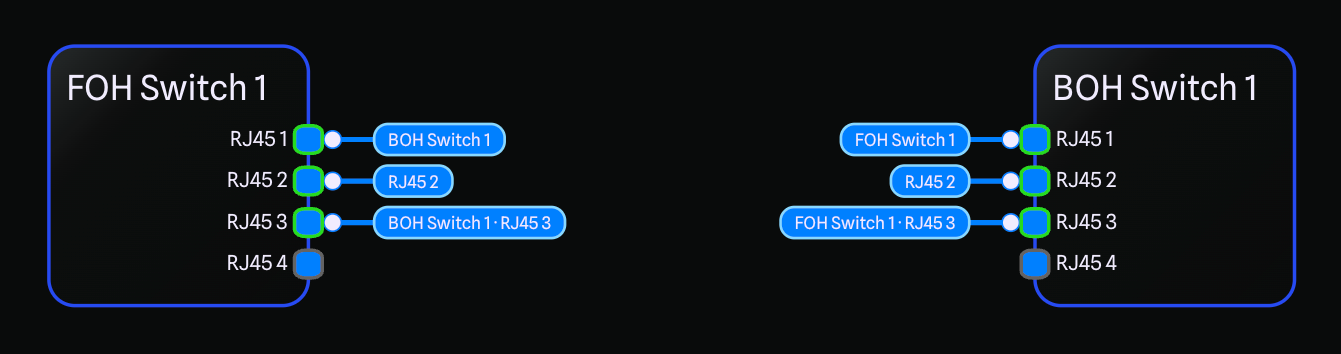
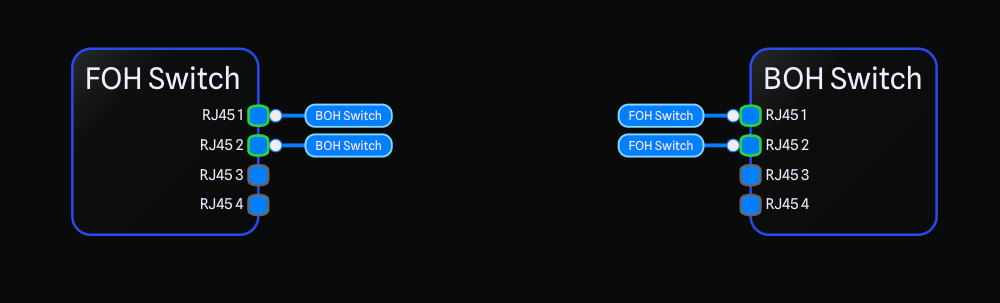
First shown off at EXPO-SCENE this year, Connection Tags are a new way to cut down on visual clutter in large drawings. Instead of drawing the full line between two distant pieces of gear, a tagged connection appears as two short stubs, one at each end, with a navigation label that tells you what the connection links to. And Connection Tags come packed with helpful features beyond just the tidier look too!

Check out our video on the new feature, or read on below!
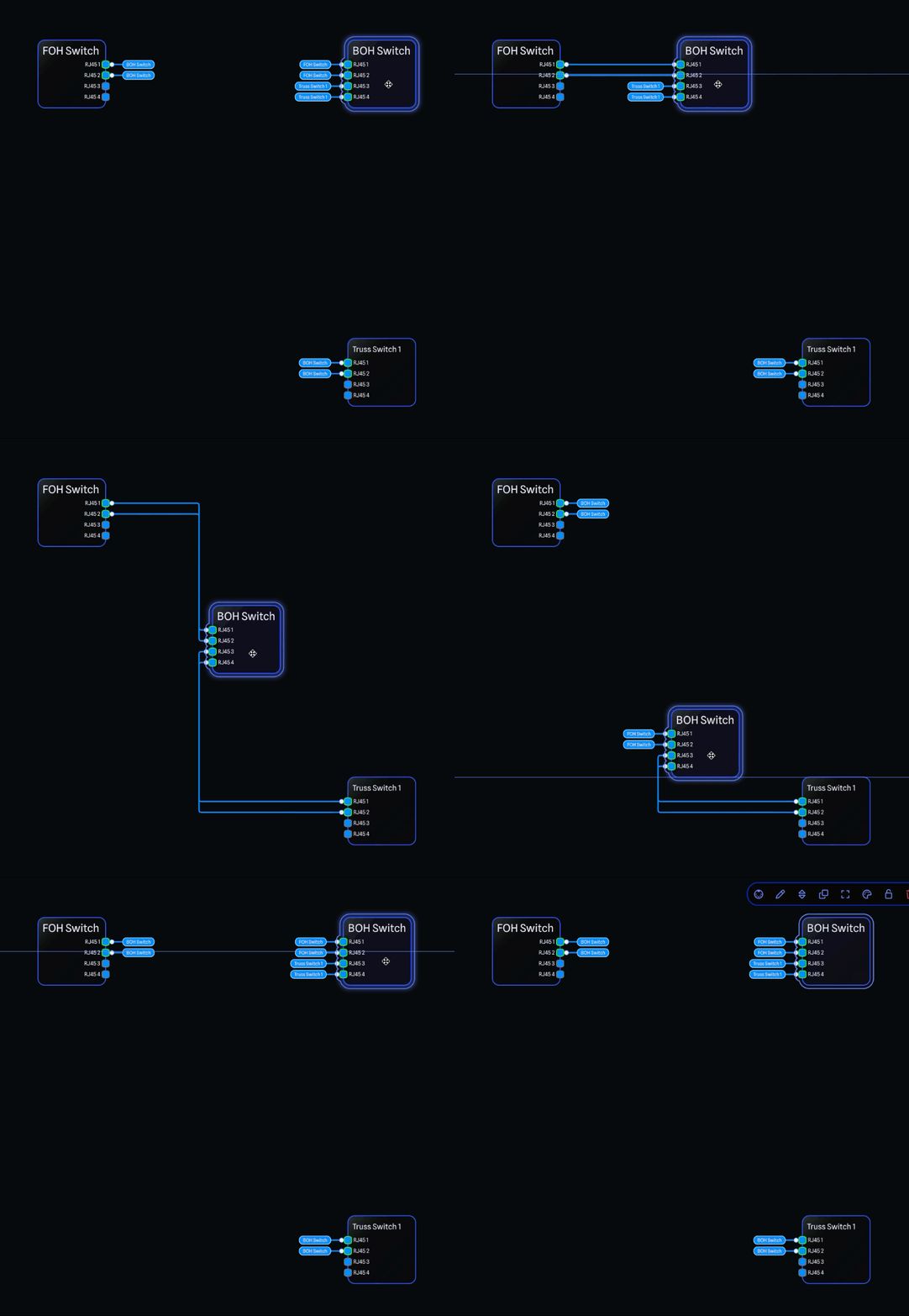
Connections come in three new modes. Auto Tag switches between a full line and tag stubs based on how far apart the connected gear is, so connections only tag themselves once the gear is far enough away to benefit from it, and this happens automatically for you as you move gear around the drawing!

Show As Tag always shows the connection as tag stubs no matter the distance, and Show Full Connection always shows the full line. You can set the preference by right-clicking a connection, from the Selection Toolbar when one or more connections are selected, or from the Edit menu under Connections.
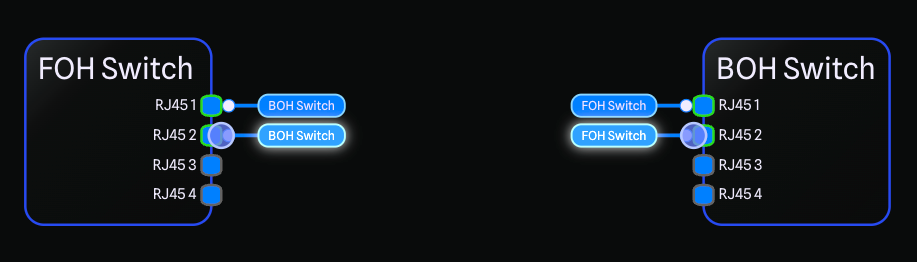
You can also control what text a tag displays. The Tag Label option gives you three choices. Gear Only is the default and shows just the name of the gear on the other end. Gear and Port shows both the gear name and the connected port label together, for example FOH · RJ45 1. Port Only shows just the connected port label, for example RJ45 1. This makes it easy to tell at a glance not only which device a connection runs to, but which specific port it lands on. Just like the tag mode, you can set the label by right-clicking a connection or from the Edit menu under Connections, with single and multi-select supported so you can update many connections at once.
Connection Tags are also a quick way to get around a big drawing. Clicking a tag label jumps the view straight to the other end of the connection, and hovering a stub highlights the matching stub at the far end so you can always find where a connection goes.

As an added bonus, to improve performance, when a connection is tagged, the line no longer calculates its Smart Connection Routing, drastically speeding up path finding when moving gear around the drawing.

You can fine tune tag behaviour in Project Settings, including the Default Tag Mode and Default Tag Label for new connections, whether tag labels are always pinned or only appear on hover, the distance threshold that triggers Auto mode, and the length of the tag lines.

Connection Tags are a Pro feature, and when a new project is created, Pro users will have connections set to Auto Tag by default, while Starter users will have connections set to Show Full Connection by default.

If you aren't already a Pro member, you can try Connection Tags out with a free month of Pro, activated automatically when you sign up! Try Tags today at beta-app.gearconnect.ca.

Default Library Updates

Thank you to everyone who has requested and submitted library items!
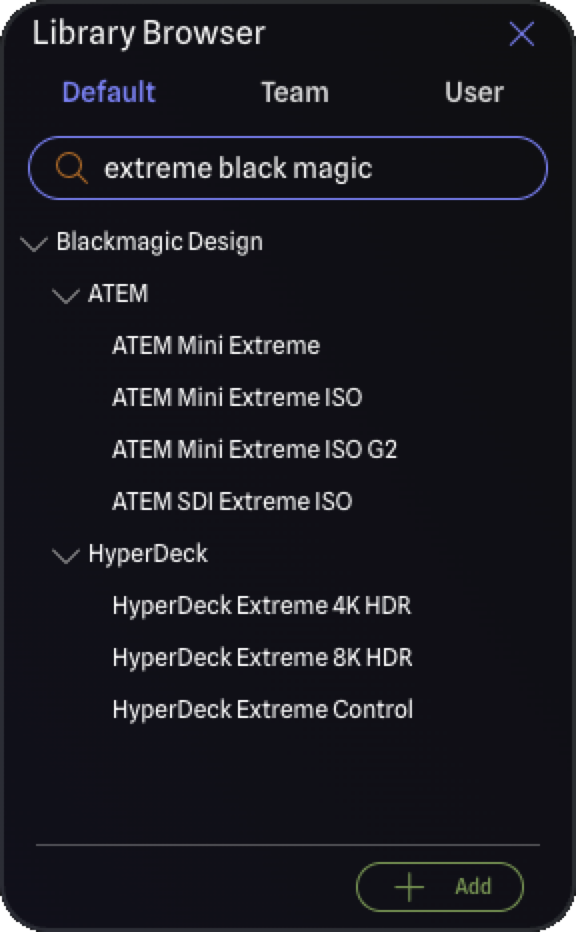
  • Blackmagic Design
    • Blackmagic Cloud Store
    • Blackmagic Cloud Pod
    • Blackmagic Cloud Store Ultra 48TB
    • Blackmagic Cloud Store Ultra 24TB
    • Blackmagic Cloud Store Max 48TB
    • Blackmagic Cloud Store Max 24TB
    • Blackmagic Cloud Store Mini 16TB
    • Blackmagic Cloud Store Mini 8TB
    • Blackmagic SDI Expander 8x12G
    • Blackmagic Studio Fiber Converter
    • Blackmagic Camera Fiber Converter
    • HyperDeck ISO Recorder 100G
    • Teranex Mini IP Video 12G
    • Teranex Mini Quad SDI to 12G-SDI
    • Teranex Mini 12G-SDI to Quad SDI
    • Teranex Mini SDI Distribution 12G
    • Teranex Mini HDMI to Optical 12G
    • Teranex Mini Optical to HDMI 12G
    • Teranex Mini Audio to SDI 12G
    • Teranex Mini SDI to Audio 12G
    • Teranex Mini Analog to SDI 12G
    • Teranex Mini SDI to Analog 12G
    • Teranex Mini HDMI to SDI 12G
    • Teranex Mini SDI to HDMI 12G
  • Crown
    • CT 8150
    • CT 875
    • CT 4150
    • CT 475
    • CTD-8125
    • CTD-4125
    • CTD-2125
  • DirectOut
    • ANDIAMO
  • Hive Media Control
    • Pluto 2TB
    • Pluto 1TB
    • Osmia 2TB
    • Osmia 1TB
    • Minima 1TB
    • Minima 500GB
  • iConnectivity
    • mioXL
    • mioXM
  • KLANG
    • KLANG:konductor
    • KLANG:vokal
  • Luminex
    • GigaCore 30i
  • QSC
    • LS218
    • LS118
    • LA112
    • LA108
  • Rupert Neve Designs
    • RMP-D8

Improvements

  • The Hover Card no longer twitches between the left and right side of the drawing when your cursor sits near the center. Once it settles on a side, the card now stays there until your cursor moves well past the middle of the drawing.
  • Zoom to Fit now accounts for the drawing toolbar when framing tall gear, so they are no longer tucked behind it.
  • Jumping to a gear item that is too large to fit within your current camera size now zooms the drawing out to fit the gear cleanly.
  • Local Mode now re-activates faster after a sync, dropping the delay from 5 seconds down to 1.5 seconds.
  • The drawing integrity check can now repair mismatched connections. When a connection's endpoints have drifted out of sync, choosing Repair reconnects it to the correct ports instead of removing it from the drawing.

Bug Fixes

  • Fixed not being able to use CTRL + Click to pan around the drawing.
  • Fixed clicking into the drawing not clearing active text boxes such as the grid size and search fields.
  • Fixed the Connection Hover Card showing a connection's own port as the connected port in some situations.
  • Fixed connections not being hoverable or selectable immediately after a bulk duplicate.
  • Fixed being able to middle mouse pan around in the Library Editor preview.
1.39.2
Direct Link

Minor Update

The bug fixes from the previous Beta release are now released. Please see below for more details.

Bug Fixes

  • Fixed a crash that could occur when opening a project containing hidden ports that were still connected to connections.
    • Projects affected by this crash are now automatically repaired when opened.
  • Fixed an issue where an existing connection could be reconnected onto a hidden port.
  • Fixed an issue where a port could be hidden while still connected to a connection.
  • Fixed pan, multi select, and other interactive drawing features being unresponsive in projects affected by the issues mentioned above.
Beta App
Direct Link

Minor Update

Bug Fixes

  • Fixed a crash that could occur when opening a project containing hidden ports that were still connected to connections.
    • Projects affected by this crash are now automatically repaired when opened.
  • Fixed an issue where an existing connection could be reconnected onto a hidden port.
  • Fixed an issue where a port could be hidden while still connected to a connection.
  • Fixed pan, multi select, and other interactive drawing features being unresponsive in projects affected by the issues mentioned above.
1.39.1
Direct Link

New Automation category and additional port options

This release adds Automation as its own gear category, eight new port connectors and the Allen & Heath ME signal type, and a fresh batch of Default Library gear.

New Port Options

  • New Connectors
    • LEMO 3-Pin
    • Phoenix 6-Pin
    • powerCON 32 A
    • Weiland 6-Pin
    • VHDCI
    • F Type
    • N Type
    • PS/2
  • New Signal Types
    • Allen & Heath ME

Default Library Updates

Thank you to everyone who has submitted and requested library items; we have almost 100 new library items since our last update thanks to you!
  • Disguise
    • GX 3+
  • Martin Audio
    • CDD5B
    • CDD5BTX-MAR
    • CDD5BTX-WR
    • CDD5RAL
    • CDD5RALTX
    • CDD5W
    • CDD5WTX-MAR
    • CDD5WTX-WR
    • CDD6B
    • CDD6BTX-MAR
    • CDD6BTX-WR
    • CDD6RAL
    • CDD6RALTX
    • CDD6W
    • CDD6WTX-MAR
    • CDD6WTX-WR
    • CDD8B
    • CDD8B-WR
    • CDD8BTX
    • CDD8BTX-WR
    • CDD8RAL
    • CDD8W
    • CDD8W-WR
    • CDD8WTX
    • CDD8WTX-WR
    • CDD10B
    • CDD10B-WR
    • CDD10BTX
    • CDD10BTX-WR
    • CDD10RAL
    • CDD10W
    • CDD10W-WR
    • CDD10WTX
    • CDD10WTX-WR
    • CDD12B
    • CDD12B-WR
    • CDD12RAL
    • CDD12W
    • CDD12W-WR
    • CDD15B
    • CDD15B-WR
    • CDD15RAL
    • CDD15W
    • CDD15W-WR
    • CDD-LIVE 8
    • CDD-LIVE 12
    • CDD-LIVE 15
    • iK41
    • iK42
    • iK81
    • SXP118
    • SXP218
    • VIA2004
    • VIA2502
    • VIA5002
    • VIA5004
  • NewTek
    • NC1 IO IP
  • Other World Computing
    • OWC 11-Port Thunderbolt 5 Dock
    • OWC 11-Port Thunderbolt Dock
    • OWC 14-Port Thunderbolt Dock
    • OWC Gemini
    • OWC Thunderbolt 5 Dual 10GbE Network Dock
    • OWC Thunderbolt 5 Hub
    • OWC Thunderbolt Go Dock
    • OWC Thunderbolt Hub
    • OWC Thunderbolt mini Dock
    • OWC Thunderbolt Pro Dock
  • Palmer
    • PB-20 Pressbox
  • Panasonic
    • PT-RQ13K
    • PT-RS11K
    • PT-RS20K
    • PT-RZ12K
    • PT-RZ21K
  • QSC
    • CB10
    • KC12
    • KW122
    • KW152
    • KW153
  • Sennheiser
    • EM 6000
    • EW-D SKM-S
    • EW-DX SKM
    • EW-DX SKM-S
    • SKM 100 G4
    • SKM 500 G4
    • SKM 825-XSW
    • SKM 835-XSW
    • SKM 865-XSW
    • SKM 2000
    • SKP 2000XP
    • SL Handheld 865 DW
    • SL Handheld DW
    • Spectera DAD
  • Vizrt
    • TriCaster 1 Pro
    • TriCaster Mini X
    • TriCaster TC1
    • TriCaster TC410 Plus

Improvements

  • Added a new Automation gear category for motion-control and rigging gear such as chain hoists, hoist controllers, winches, and variable-speed drives.
  • The connector selector now groups BNC, HD-BNC, Mini BNC, Micro BNC, F Type, and N Type together under a single Coax group, replacing the BNC group.

Bug Fixes

  • Fixed not being able to upgrade to a yearly plan while on a trial without a payment method on file; the billing portal now opens normally instead.
1.39.0
Direct Link

Swap gear in place, restyle your connections, and more!

All the features from recent Beta releases are now fully available! This release lets you change a placed gear item's library entry and expansion cards without redrawing connections, adds custom connection line styles, makes the Library Browser and My Gear noticeably more responsive, and brings enhanced server sync alongside a new project repair flow that recovers missing data from your projects.

Swap Library Items and Expansion Cards

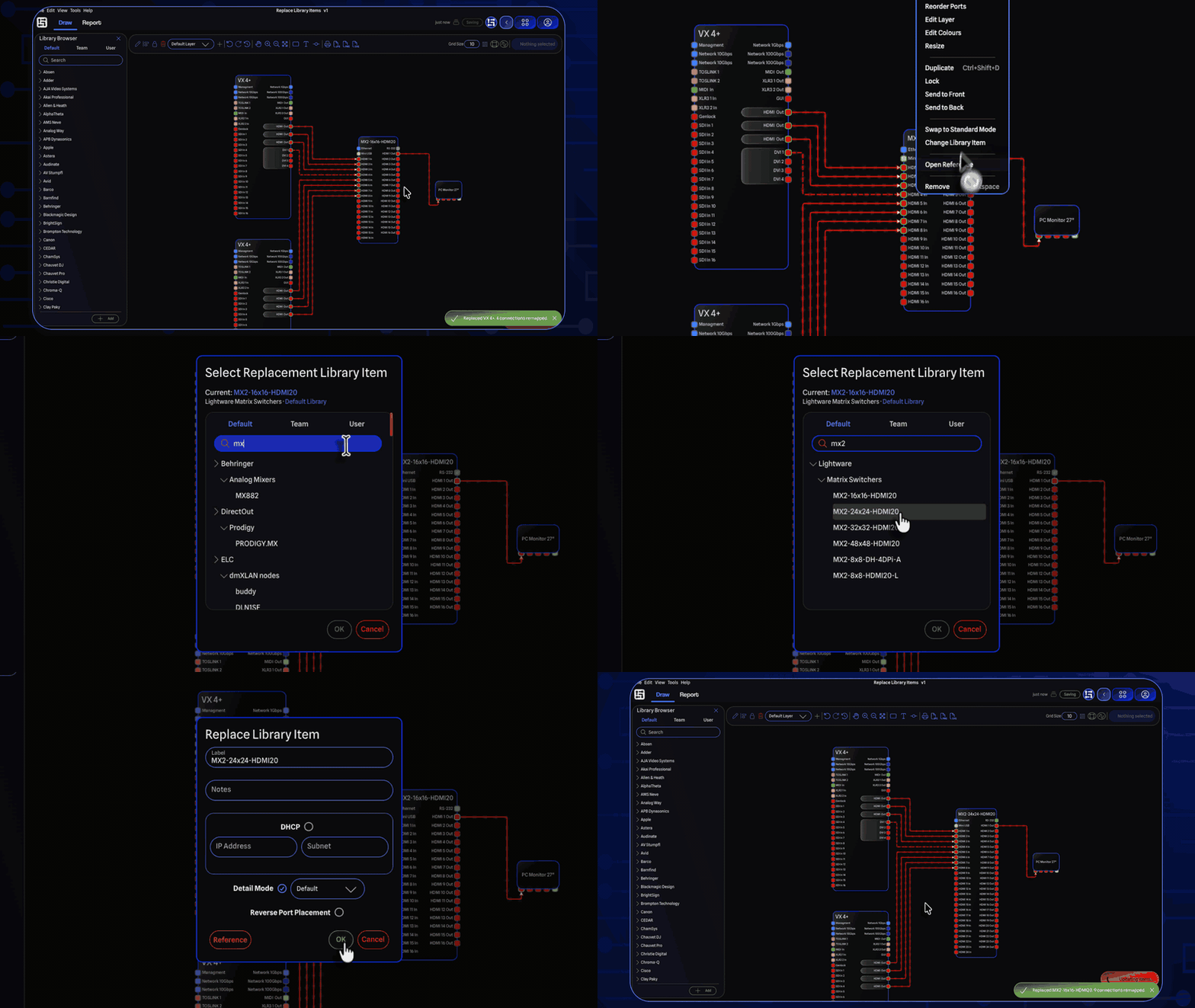
You can now swap a placed device for a different library item without removing it from the drawing. Right-click any gear and choose Change Library Item, and GearConnect remaps the existing connections to the matching ports on the new device. Gear preferences like Detail Mode and DMX modes are preserved during the swap, and expansion-card or base ports are preferred so cabling lines up the way you would expect.

For gear that supports expansion cards, Change Expansion Cards lets you edit slot configurations in place. The picker only shows card choices that fit the slots on the new device, so a swap can never leave a slot misconfigured.

These features require Local Mode.

More detail in the original Beta entry.

Swap Between Detail and Standard Mode

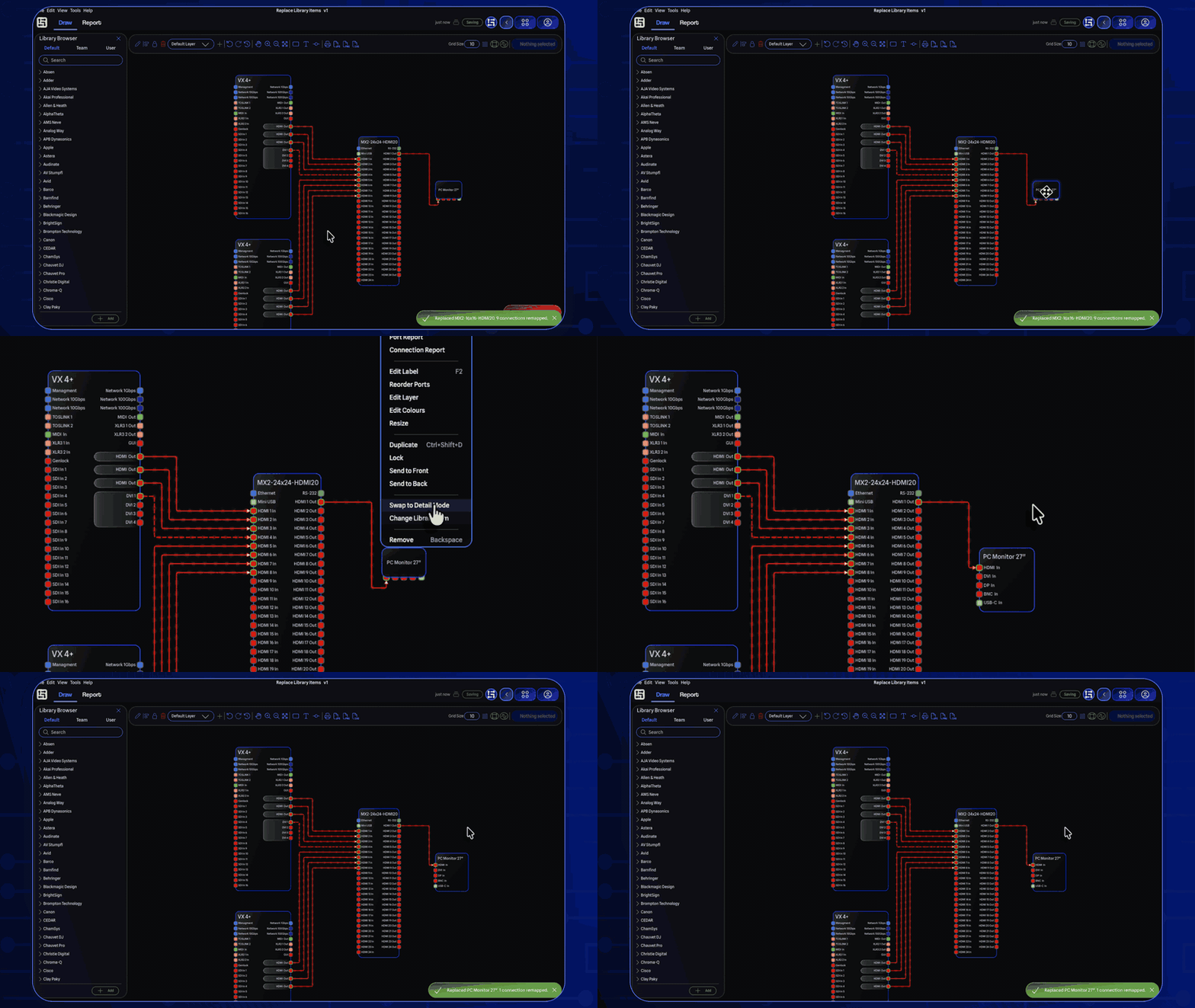
You can now switch any placed gear between Detail Mode and Standard Mode without removing it. Right-click the gear and toggle the mode, or use the new Gear submenu in the main menu bar, making it much smoother when needing to swap between the two modes as GearConnect will re-map connections to the appropriate ports on the new mode automatically for you.

This feature requires Local Mode.

More detail in the original Beta entry.

Customize Connection Line Styles

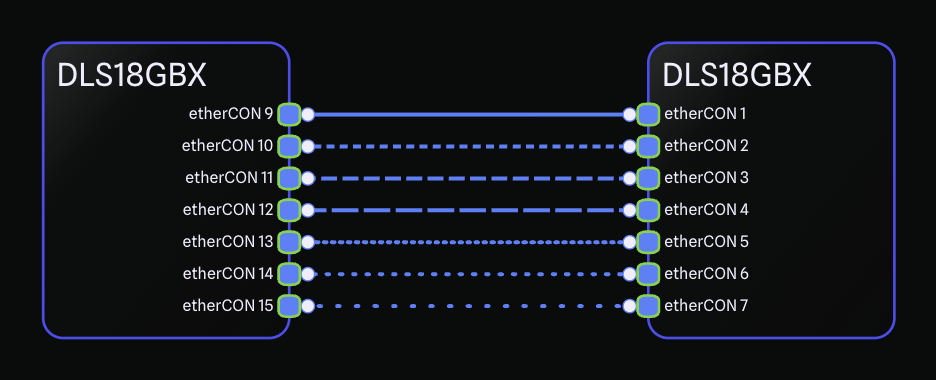
Connections can now be drawn in seven styles: Solid, Short Dash, Medium Dash, Long Dash, Short Dotted, Medium Dotted, and Long Dotted. The default Auto setting keeps the previous behaviour, drawing solid lines unless an adapter or signal warning triggers automatic dashing. A manual selection always overrides the automatic style.

You can change the style by right-clicking a connection or by using the Selection Toolbar when several connections are selected.

More detail in the original Beta entry.

Faster Library Browser and My Gear Search

With thousands of items now in the Default Library, the search experience in the Library Browser and My Gear has been significantly improved. Typing in the search bar is responsive again, with typing responding instantly, and searching only filters after you are done typing.

More detail in the original Beta entry.

Library Editor Improvements

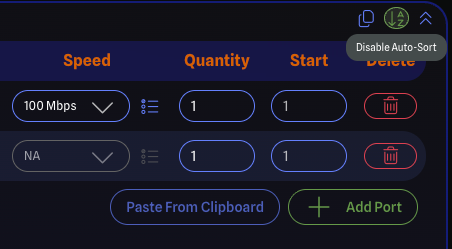
A new auto-sort toggle on the Port Config pane gives you control over automatic port sorting while you build out a library item. The auto-sort toggle and the regenerate preview setting are now both remembered between sessions, alongside your other Library Editor preferences.

More detail in the original Beta entry.

Project Validation and Repair

In the rare case that your project file gets out of sync with the server, GearConnect can now repair it for you. When validation finds an affected item it tells you which item is impacted and lets you choose to attempt a repair, remove the item from the drawing, or close the project. Attempting a repair re-adds the item from the library and restores its connections where possible; if the original cannot be found, a generic item with a matching port count is used so the drawing stays intact.

In addition, project validation is no longer optional to ensure project integrity and runs automatically when an issue is detected, with a countdown bar to show when it is about to start.

Importing a project no longer aborts when errors are detected. The import continues and any issues are handled by the new repair flow. The previous strict behaviour is still available through an "Abort import on errors" checkbox in the file picker. Imports also pass through a new preprocessing step that catches common conflicts before the process begins.

More detail in the original Beta entry.

Sync Reliability

A series of fixes makes Local Mode syncing more resilient when projects are imported, restored, or edited offline:
  • Reusing a VLAN ID in the same sync now keeps your chosen number instead of being reassigned.
  • Reusing a Cable Inventory SKU in the same sync no longer renames it to a variant like "1 (1)".
  • Restoring a previous version of a project no longer triggers a duplicate connection error during the next sync. Connections are now cleaned up and revalidated during file imports and version restores.
  • VLAN ID conflicts with stale server-side entries are detected and remapped automatically, and you are notified when it happens.
  • Cable SKU conflicts on the server are handled the same way, with automatic renaming and a notification.
  • Importing a project offline and then syncing it no longer crashes on VLAN references on switch ports.

More detail in the original Beta entry 1 and entry 2.

Default Library Updates

  • Netgear
    • M4300-8XSFP+

Improvements

  • The Hover Cards that appear over ports and connections now reposition themselves based on your cursor location. When your cursor is on the right side of the drawing, cards open to the left, and vice versa, so they no longer cover what you are looking at.
  • A new Gear submenu has been added to the Main Menu Bar so common gear actions are easier to find.
  • Promo codes that are restricted to first-time customers, or that conflict with an existing subscription, now show a clear, specific error message instead of a generic one.
  • Local Mode now handles errors more consistently across sync, import, and validation flows.

Bug Fixes

  • Fixed an issue where archived expansion cards could still appear in selection dropdowns.
  • Fixed the empty spacing between expansion card ports being connectable, which could leave orphaned connections.
  • Fixed a crash when adding a lighting fixture without a DMX profile or an amplifier without power options. These fields now display NA in the General Settings pane and are no longer editable when they do not apply.
  • Fixed Library Editor settings being reset when navigating between pages.
  • Fixed generic ports not showing accurate informational details, including adapter data and VLAN warnings.
  • Fixed two same-direction generic ports failing to connect.
  • Fixed the project upgrade notification appearing multiple times when opening older projects.
  • Fixed undo history not being available immediately after importing a project.
Beta App
Direct Link

Minor Update

Bug Fixes

  • Fixed an issue where reusing a VLAN ID in the same sync would lose the chosen ID. For example, deleting VLAN 101 and recreating it with the same ID now keeps 101 instead of bumping it to the next free number when synced.
  • Fixed an issue where reusing a cable inventory SKU in the same sync would rename the new entry. Deleting a cable with SKU 1 and recreating one with SKU 1 now keeps the chosen SKU instead of renaming it to "1 (1)" when synced. Existing automatic renumbering for true duplicates within the same file is preserved.
  • Fixed an issue where connections involving generic ports did not always carry accurate informational details. Additional data such as adapters and VLAN warnings now appear correctly on these connections, while generic ports continue to allow full unrestricted compatibility.
  • Fixed an issue where generic ports were incorrectly enforcing port direction during sync. Connecting two same-direction generic ports (for example, generic in to generic in) now works as expected instead of failing during sync.
Beta App
Direct Link

Faster library search and auto-sort toggle in the Library Editor

Faster Library Browser and My Gear Search

With the GearConnect library now spanning thousands of items, we have made significant performance improvements to keep search feeling snappy. Typing in the search bar of the Library Browser and My Gear no longer lags, and results appear immediately after you are done typing.

Auto-Sort Toggle in the Library Editor

A new auto-sort toggle has been added to the Port Config pane in the Library Editor, giving you control over whether ports are automatically sorted as you build or tweak a library item. The toggle, along with the existing regenerate preview setting, now remembers your preferences so you no longer have to re-set them each time you open the Library Editor.

Default Library Updates

Thank you to everyone who has submitted and requested library items! We have added over 230 items to the library in the last few weeks alone thanks to all of you, so this list is larger than usual:
  • Adamson
    • S7
    • S7p
    • S10
    • S10n
    • S10p
    • S118
    • S119
    • IS7
    • IS7c
    • IS7p
    • IS7px
    • IS5c
    • IS10
    • IS10n
    • IS10p
    • IS118
    • IS119
    • IS213
    • IS219
    • CS7
    • CS7p
    • CS10
    • CS10n
    • CS10p
    • CS118
    • CS119
    • VGs
    • VGt
    • E12
    • E15
    • E119
    • E219
    • M10
    • M12
    • M15
    • M212
    • MG10
  • Audio Technica
    • BPHS2
  • Barco
    • SP2K-7S
    • SP2K-9S
    • SP2K-11S
    • SP2K-15S
    • SP2K-20C
    • SP2K-25C
    • SP4K-12C
    • SP4K-13CHC
    • SP4K-15C
    • SP4K-20C
    • SP4K-25C
    • SP4K-27BHC
    • SP4K-35B
    • SP4K-40B
    • SP4K-55B
  • Behringer
    • HA400
  • Blackmagic Design
    • Teranex Audio to SDI
  • Blustream
    • CUSTOM PRO-HUB16
    • CUSTOMPRO-HUB
  • BSS Audio
    • BLU-100
    • BLU-120
    • BLU-160
    • BLU-326DA (BLU-326)
    • BLU-806DA (BLU-806)
    • BLU-10BLU
    • BLU-BOB2
    • EC-4B
    • EC-8BV
  • ChamSys
    • GeNetix GD4D
    • GeNetix GD4IP
    • GeNetix GD10
    • GeNetix GN2
    • GeNetix GN4IP
    • GeNetix GN5
    • GeNetix GN8
    • GeNetix GN10
    • GeNetix GN10P
    • GeNetix GN10R
    • GeNetix GS5D
    • GeNetix GS5IP
    • GeNetix GS8
    • GeNetix GW2I
    • GeNetix GW2O
  • Clear-Com
    • HXII-BP-4K-X4
    • HXII-BP-4K-X5
  • Crest Audio
    • Tactus .FOH
    • Tactus .Stage
  • D&B Audiotechnik
    • 5D
    • 5DM
    • D6
    • 10D
    • 25D
    • 40D
    • D25
    • R70 Ethernet to CAN interface
  • DiGiCo
    • Orange Box
  • DirectOut
    • EXBOX.SG
    • SG.MADI
  • Dolby
    • Dolby Cinema Processor CP950
    • Dolby Atmos Cinema Processor CP950A
  • Hollyland
    • Wireless Video RX
    • Wireless Video TX
  • LumenRadio
    • Aurora
    • Galileo MAX
    • Galileo RX
    • Galileo TX
    • Luna
    • MoonLite²
    • Stardust
  • MA Lighting
    • grandMA3 onPC 2Port Node 2k PoE
    • grandMA3 onPC 4Port Node 4k PoE
    • grandMA3 onPC 8Port Node 4k PoE
    • grandMA3 onPC DMX-key
    • grandMA3 onPC DMX-key starter
    • grandMA3 onPC rack-unit
  • Meyer Sound
    • 900-LFC
    • 1100-LFC
    • 1800-LFC
    • 2100-LFC
  • Midas
    • DL32
  • MultiDyne
    • SilverBack V Camera Unit
    • SilverBack V Dual Camera Base Station
    • V4
    • V6
    • VT
    • VX
    • VF-9000
  • OBSBot
    • Obsbot Tail 2
  • Pathway
    • PWPP RM P4 RJ45EC
    • PWPP RM P4 TERM
    • PWPP RM P4 XLR5F
    • PWPP RM P8 RJ45EC
    • PWPP RM P8 TERM
    • PWPP RM P8 XLR5F
    • PWPP RM P8 XLRTERM
    • PWPP WM P1 XLR5F
    • PWPP WM P1 XLR5M
    • PWPP WM P2 XLR5F
    • PWPP WM P2 XLR5M
    • PWPP WM P2 XLR5MF
  • Sennheiser
    • AWM UHF (470 – 694 MHZ)
    • EK 100 G4
    • EM 300-500 G4
    • EM2 Dante
    • SK 100 G4
    • SKM 2000
    • SKM 6000
    • SKM 9000
    • SKM AVX
    • SKM AVX 835
    • SKP 2000XP
    • XSW-D XLR Female TX
  • Waves
    • DiGiGrid D
    • DiGiGrid DGS-XL
    • DiGiGrid DLI
    • DiGiGrid DLS
    • DiGiGrid IOC
    • DiGiGrid IOS-XL
    • DiGiGrid IOX
    • DiGiGrid M
    • DiGiGrid MGB
    • DiGiGrid MGO
    • DiGiGrid Q

Bug Fixes

  • Fixed a crash that could occur when adding lighting fixtures that were missing DMX profiles or amplifiers that were missing power options. These fields now display NA in the General Settings Pane and are no longer editable when not applicable.
Beta App
Direct Link

Minor Update

Bug Fixes

  • Fixed a sync error that could occur after restoring a previous version of a project. In some cases, restoring from version history would leave stale connection data on ports, causing a "duplicate connection" error when the project synced with the server. Connections are now cleaned up and revalidated during both file imports and version restores, preventing this issue.
  • Fixed sync errors in regards to VLAN and Cable Inventory changes.
    • If a newly created VLAN used an ID that was still held by a stale server-side VLAN, the sync would fail with an error. Likewise, the same error could occur if trying to change a VLAN ID to one that already existed on the server. VLANs with conflicting IDs are now automatically remapped to the next available ID, and a notification lets you know if any were remapped.
    • If a newly created cable inventory used a SKU that was still held by a stale server-side cable, the sync would fail with an error. Likewise, the same error could occur if trying to change a SKU to one that already existed on the server. Cables with conflicting SKUs automatically rename themselves, and a notification lets you know if any where renamed.
  • Fixed promo codes showing a generic error message when used by existing customers. Promo codes restricted to first-time customers, or codes that cannot be applied to your current subscription, now display a clear and specific error message instead.
Beta App
Direct Link

Customize connection line styles

Connection Line Styles

You can now change the visual appearance of any connection line on your drawing. Choose from seven styles: Solid, Short Dash, Medium Dash, Long Dash, Short Dotted, Medium Dotted, and Long Dotted. Whether you want to visually distinguish signal paths, indicate temporary connections, or simply match the conventions your team uses on paper, line styles give you full control over how your connections look.

The default setting is Auto, which works the same way as before - connections render as solid lines unless they require an adapter or have a signal warning, in which case they are automatically dashed. When you manually set a line style, your choice always takes precedence over the automatic dashing.

There are several ways to change line styles. Such as right-clicking any connection and selecting Edit Line Style, or using the Selection Toolbar when one or more connections are selected.

Improvements

  • Hover cards now reposition dynamically based on your mouse location. If your cursor is on the right side of the drawing, the hover card appears to the left, and vice versa. This prevents hover cards from overlapping your cursor position, making it difficult to see the drawing.
Beta App
Direct Link

Swap gear modes, replace library items, and update expansion cards

Swap Detail/Standard Mode

Accessible from the right click menu and General Settings, you can now toggle gear between Detail Mode and Standard Mode without removing and re-adding it. Detail Mode displays ports along the left and right sides, which is great for switches or consoles with many different connectors. Standard Mode places ports along the top and bottom, better suited for simple devices like speakers or lighting fixtures.

This feature requires Local Mode to be enabled.

Replace Library Items

You can now swap out a piece of gear in your drawing for a different library item without having to remove and re-add it manually. Right-click any gear on the drawing and select Change Library Item to open the Library Browser, pick a replacement, and GearConnect will handle the rest. This feature requires Local Mode to be enabled.

Change Expansion Cards

Along with replacing library items, you can now change the expansion card configuration of gear directly in the drawing. Right-click any gear that supports expansion cards and select Change Expansion Cards. The expansion card picker opens pre-populated with the current configuration, make your changes, and the gear is rebuilt with the updated cards.

This feature also requires Local Mode.

Real Time Connection Re-Mapping

When you use one of these features, GearConnect automatically remaps your existing connections to matching ports on the updated gear by trying to find the best match between the old and new ports. A notification summarizes how many connections were remapped, and any connections that couldn't find a match are removed.

Using GearConnect's real time port validation, it will attempt to match ports maintaining the old ports as close as possible; across expansion cards, connectors, signal types, and more. If it can't find a clean match, it will attempt to find a compatible port you can use with an adapter. And of course, if the result is not what you expected, you can always undo the replacement or move connections as needed.

Note that customizations to the ports themselves will be reset when using these features as it uses the library item to determine the updated port configuration.

Default Library Updates

Thank you to everyone who has submitted library items!
  • Allen & Heath
    • CC-10
    • GPIO
  • Behringer
    • MX882
  • ChamSys
    • Compact Connect
    • Compact Mini Connect
    • Compact Wing
    • DIN
    • MQ50
    • MQ70
    • Rack
  • Chauvet DJ
    • SlimPAR Pro Q USB
  • Chauvet Pro
    • Net X-II
  • D&B Audiotechnik
    • DS10
  • GearConnect Generic Items
    • Audio Combiner Active/Passive
    • Audio Splitter
    • Audio Switcher 40K
  • Glensound
    • AoIP22
  • Key Digital
    • KD-CX800
  • Penn Elcom
    • 1U Rack Panels 16 x BNC
  • Shure
    • SLXD24D-G58

Improvements

  • Tightened up spacing in menu items, for a more compact design.
  • Added a Gear submenu to the Edit menu with Swap Detail/Standard Mode, Change Library Item, and Change Expansion Cards actions.
  • Project validation improvements:
    • It now runs automatically after every save.
    • Validation can attempt to repair items rather than just removing them by replacing gear with fresh library items and remapping their connections. In cases where the original gear cannot be resolved, a generic item with a matching port count may be used as a fallback.
    • You can no longer cancel validation.
    • Significant improvements to the validation pipeline, catching and handling dozens of additional cases for further reliability.
  • Local Mode syncing improvements:
    • Reduced network traffic during Local Mode syncing for better performance and faster syncing.
    • Gear Groups are now more reliably tracked during syncing.
    • Connections and ports now wait to clean up old items until all connections and ports have been updated on the server to prevent the sync from getting stuck in rare edges cases where it tries to update a previously deleted item.
  • You can now bulk edit cable inventory SKUs, with automatic suffixing for duplicates.
  • Duplicate VLAN Ids and duplicate cable inventory SKUs are now automatically relabeled to avoid conflicts.
  • Improved resilience when upgrading older project data and importing projects.
  • Importing projects now continue by default instead of aborting, as any import errors are now handled via the improved project validation.
    • As such, the checkbox has been renamed to "Abort import on errors" and is off by default
  • Importing a new project or copying an existing project now has a preprocessing step, to preemptively prevent any possible import conflicts.

Bug Fixes

  • Fixed being able to connect a connection to the gap between expansion card ports.
  • Fixed a crash that could occur when gear was being resized and port data could not be loaded.
  • Fixed connections sometimes getting stuck in the wrong gear group.
  • Fixed duplicate VLAN IDs sometimes not updating correctly.
  • Fixed the Undo Stack not working after importing a file.
  • Fixed an issue where syncing could fail if a switch port was missing a VLAN, such as when opening an older file where the VLAN had since been removed.
  • Fixed importing files offline and then syncing to the server causing sync to fail in some situations.
  • Fixed ports no longer being created if the gear itself failed to be added to the drawing.
  • Fixed archived expansion cards showing up in the dropdown when selecting cards.
1.38.0
Direct Link

All the port updates are now released!

All features from the recent Beta release are now available to everyone! This release focuses on giving you more control over how ports are displayed and managed on your gear, along with quality of life improvements across the app.

For the full details, see the Beta changelog.

A quick recap of the highlights:

  • Port sorting and reordering with full control over port group placement
  • Redesigned Port Table Dialog with search, filtering, and live gear preview
  • Bulk editing across port tables and all managers
  • Redesigned hover cards with organized sections and connector-coloured headers
  • New keyboard shortcut (Ctrl+Alt+S) for Local Mode syncing
  • Improved performance during gear resizing
  • And dozens of other improvements and bug fixes!
Beta App
Direct Link

Port reordering + revamped port tables and hover cards

This beta release brings significant updates to ports across the app, with numerous improvements to make working with ports easier and faster!

Port Sorting and Reordering

You now have full control over how ports are arranged on your gear. Ports are automatically organized into groups based on their shared properties (category, connector, signal, etc.), and sorted using a default algorithm that puts bidirectional ports first, then inputs, then outputs, grouped by connector and category.

While the defaults work for most gear, several of you have expressed wanting full control over port layout, and now you can customize it in several ways! You can now move port groups to specific sides of the gear, split them evenly across both sides, or leave them on auto. You can reorder port groups and set their position from the Port Table dialog, the Port Report, or directly on the drawing. For full details, see the Port Sorting & Reordering section in our docs.
Side overrides and custom ordering can also be set on library items in the Library Item Port Config, so your preferred layout is applied every time you add that gear to a project. To reset customizations, use the Reset Side Overrides or Reset Port Group Ordering buttons in the Port Table toolbar.

Redesigned Port Table Dialog

The Port Table has been redesigned to make working with ports faster and more intuitive. You can now search across all ports, filter by category, or show only connected ports to quickly find what you're looking for. Port group headers now use connector colours so you can instantly identify groups at a glance too.

A live gear preview is now built into the dialog, updating in real-time as you make changes, including showing which ports are connected or not. For Detail Mode gear, the preview appears as a panel on the left side. For Standard Mode gear, it appears as a strip across the top. As you toggle port visibility, reorder groups, or change side overrides, the preview reflects your changes immediately so you no longer need to jump back and forth between the dialog and the drawing.

Bulk Editing in Port Tables and Managers

Bulk editing is now available in the Port Table and all managers for even faster editing! Select rows using the checkbox column, and editing a field on one selected row applies the change to all selected rows. Most fields are bulk editable, and any that aren't applicable to a selected row will be skipped with a notification letting you know how many were skipped (for example trying set the same SKU to several cables at once, as SKUs are unique per cable).

Redesigned Hover Cards

The hover cards that appear when you hover over a port or connection have been completely redesigned with a new organized layout to make it much easier to read, while providing even more information. Each card features a coloured strip at the top matching the port's connector colour, and the connected section heading turns green when the port has an active connection, making it trivial to quickly check connection status.

Information is now organized into clearly labeled sections. For ports: General, Placement, Signal, Expansion Card, and Connected. For connections: General, Gear, Signal, and Cable.

New fields include:
  • Ports: Block, group order, side override, connected gear and port labels
  • Connections: Connector details, adapter info, signal warnings, and full cable details
Fields with no value appear greyed out so you can quickly focus on the information that matters.

Improvements

  • The Port Table dialog now opens at near full-screen size, giving you much more room to work with port tables and the new gear preview panel.
  • The toolbar at the top of the Port Table dialog now includes:
    • Search
    • Category filter
    • Connected Only filter
    • Side override controls to quickly move all ports left, right, top, bottom, or split
    • Reset buttons
    • Help button explaining port sorting and layout behaviour
  • The toggle all visibility buttons have been removed from the Port Table toolbar. You can now toggle visibility directly from the port table rows using the checkbox selection and bulk editing instead, which gives you further control over which ports to toggle visibility for.
  • Each port group header in the Port Table now includes a drag handle for reordering, a cycling button for change gear sides, and an ordering badge showing the current custom group order value.
  • Moved the View All Details button to the bottom of Gear Config so it is now always visible instead of hiding when you scroll down.
  • Improved performance when resizing gear, especially on gear with many ports.
  • Ports in the Library Editor are now sorted by the order ports appear in the preview and drawing.
    • Note this means that ports may re-order themselves if you change port options and you don't have a custom sort order set.
  • Renamed "ordering" to "start" in the Library Editor for clarity.
  • Search boxes are now more forgiving with special characters, such as in the Library Browser search.
  • New keyboard shortcut (Ctrl+Alt+S) for syncing Local Mode.
  • Removed the fiber note in the Cable Inventory Manager help menu.
  • Changelogs now support images (like this one!).

Bug Fixes

  • Fixed ports not returning to their correct side when changing between inputs and outputs.
  • Fixed expansion card ports not ordering consistently within the drawing.
  • Fixed auto port re-labeling sometimes relabeling the wrong number for ports with names like "Port 1 Number 1".
  • Fixed ghost labels appearing around expansion cards in the drawing. Any existing gear that still has ghost labels will be fixed next time you make an edit to the gear's ports.
  • Fixed labels not truncating correctly when port option changes would cause gear to shrink or resize.
  • Fixed sorting not consistently being applied to the gear preview in the Library Editor after adding ports.
  • Fixed animation bugs in the Port Table dialog.
  • Fixed a rare edge case preventing port tables from auto-sorting by port number when ports first appear in the Port Table dialog.
  • Fixed the updating notification flashing too many times during rapid changes.
  • Fixed bulk changes not always applying when quickly switching between Draw and Report mode.
  • Fixed a rare edge case where Report Mode cells could get stuck being uneditable until the report was reloaded.
  • Fixed undo stack item labels not displaying correctly for port operations.
  • Fixed undo and redo not re-assigning marker connectors (input/outputs) correctly in all cases.
  • Fixed hover cards flashing in and out when hovering over a port or connection positioned under the card.
  • Fixed connections using stale routing when first opening a project, leading to connections occasionally taking different paths upon re-opening the project.
  • Fixed connection labels re-loading off centre (when this happens due to the system fonts still loading, the app will re-centre them on next save).
  • Fixed referring to connections as "links" in Pro messaging in the bulk connection warning.
1.37.1
Direct Link

Animated signal flows and port blocks!

Animated Signal Flow on Connections

You can now see the direction of signal flow on your connections as an animated overlay! When enabled, small animated dashes travel along directional connections showing you exactly which way the signal is moving, matching the direction indicated by the connection markers (arrows and circles).

The animation only appears on directional connections where one end resolves to an input and the other to an output. Connections where both ends are bidirectional do not display the animation. You can enable this from Project Settings in the Drawing section, where you will find three quality modes: Off, Low, and High.

Low mode shows the animated dashes without a glow effect and is better for performance, while High mode adds a glow effect that looks great but may be more demanding on larger drawings. The animation also respects your system's Reduce Motion accessibility setting and automatically pauses during item selection to keep interactions snappy.

Port Blocks

Ports now support an optional Block identifier, giving you a way to group ports into distinct blocks on the same piece of gear. Each block can hold up to four alphanumeric characters, and ports with the same block value are sorted together in both the drawing and the Gear Config table.

This is especially useful for gear with repeating groups of identical port configurations. For example, a video switcher with three separate groups of HDMI outputs could use Block 1, 2, and 3 to keep each group visually organized, and get around the dreaded duplicate port warning in the Library Editor. You can set the Block field on ports in the Library Editor and in the Gear Config pane.

New Port Options

  • New Connectors
    • Phoenix 16-Pin
  • New Signal Types
    • DCP

Default Library Updates

Thank you to everyone who has submitted gear to the Default Library!
  • Blackmagic Design
    • 40x40 12G
  • LYNX-Technik
    • SPG 1708
  • Netgear
    • GS108LP
    • GS316
  • StarTech
    • DKT30CHSDPD1
  • Yamaha
    • DME7
    • TF-RACK

Improvements

  • Gear in Detail Mode now automatically adjusts its width based on port label sizes, preventing labels from being truncated. This means you no longer need to manually widen gear to see long port names.
  • Made the port category selectors wider when in Multi Mode to prevent truncation.

Bug Fixes

  • Fixed invalid IP address fields accepting values with leading zeros (such as 192.168.001.010), which could cause issues during Local Mode sync. Leading zeros are now automatically stripped.
  • Fixed incompatible ports not graying out when moving existing connections, which previously made it harder to see which ports were valid targets.
  • Fixed duplicating gear with expansion cards grouped and fixed port spacing enabled not correctly clearing active port status after duplicating the gear in the drawing, until the next save.
  • Fixed Local Mode auto-sync endlessly re-syncing in certain conditions.
  • Fixed performance issues when resizing large gear with many ports, such as the Quantum 7.
1.36.0
Direct Link

Change your connector colours

Change Your Connector Colours in the Port Manager!

You can now customize the colours used for different connectors in your drawings! The new Port Manager, accessible from the Manager Menu at the top right of the app, lets you override the default colour for any connector with a custom colour that better suits your workflow or project requirements.

With nearly 150 connectors available, the Port Manager includes search and category filtering to quickly find what you need. Colours update across your drawing immediately, and you can copy and paste colours between connectors, filter to show only customized connectors, or reset everything back to defaults.

Improved Colour Picker

The colour picker has received several updates to make it more useful too! It now has three modes: Spectrum for picking any colour from a gradient, Tune for fine-tuning via RGB sliders, and Palette for quickly selecting from a curated set of common colours. You can also double-click a colour to apply it immediately.

New Port Options

FireWire connectors have been split into specific variants to better represent real-world cabling. The single "FireWire" connector has been replaced with FireWire 400 4-Pin, FireWire 400 6-Pin, and FireWire 800.

New FireWire 400 and FireWire 800 signal types have also been added, and the app will automatically assign the correct signal type based on the connector you select in the Library Editor. All FireWire connectors are adapter compatible with each other, so you can still draw connections between different FireWire types.

Any existing drawings using the old FireWire connector will be updated to be FireWire 400 6-Pin.
  • New Connectors
    • RJ10
    • FireWire 400 4-Pin
    • FireWire 400 6-Pin
    • FireWire 800
  • New Signal Types
    • SPI
    • USB4
    • FireWire 400
    • FireWire 800
  • New Connector Category
    • FireWire

Default Library Updates

Thank you to everyone who has submitted gear to the Default Library!
  • Akai Professional
    • APC Mini mk2
  • Apple
    • AirPort Extreme (6th Gen)
  • Behringer
    • SD8
    • SD16
    • X32 COMPACT
    • X32 RACK
  • Chauvet DJ
    • Intimidator Spot 360
    • Intimidator Spot 360X
  • D-Link
    • DGS-108
  • Elation Lighting
    • ZW19
  • ENTTEC
    • DIN PIXIE
  • Extron
    • XTP II CrossPoint 3200
  • Obsidian Control Systems
    • NX K
  • RF Venue
    • CP Beam
  • Rosendahl
    • nanosyncs HD
  • Sennheiser
    • A 5000-CP
    • EM 100 G4
  • Shure
    • BLX4
  • Sony
    • ILME-FR7
    • PXW-FX9
  • Soundtrack
    • Soundtrack Player 3.0
  • Starlink
    • Performance (Gen 1)
  • Theatrixx
    • HDMI to Fiber
  • Ubiquiti
    • AC HD
    • CloudKey+
    • Dream Machine Special Edition
    • G4 Instant
    • G5 Bullet
    • Lite 8 PoE
    • U6 Lite
    • U7 Outdoor
    • UDB Pro
    • USW Ultra 60W
  • Ultratec Special Effects
    • Radiance Hazer
  • ViewSonic
    • TD2211

Improvements

  • Video switchers now support IP addresses, just like switches, computers, and other networking gear.
  • The Port Report now includes a Connection Label column, giving you a way to see the label assigned to each connection without having to check a Connection Report.
  • Connections are no longer removed when changing port options if the new settings are still compatible, making it much easier to update ports without otherwise compatible connections being lost.
  • Bulk port option changes no longer flood the screen with repeated compatibility warnings, and you can approve them all with a new do not ask again checkbox.
  • Port sorting on gear no longer uses connector colour as a factor in the sort order. This gives more consistent and predictable ordering, especially now that connector colours can be customized through the Port Manager.
  • Shift-click range selection now works in manager tables, including the Port Manager, Cable Inventory Manager, and VLAN Manager. Hold Shift and click the row checkbox to select a range.
  • Gear with default Expansion Cards now automatically enables Group Expansion Ports. Most users already use this mode, and now it's on by default for ease of access.
  • Detail Mode now accounts for Expansion Card and default card ports when calculating the total port count, so it correctly kicks in for gear that act like frames - having no ports of their own as they only house Expansion Cards.
  • The Library Editor now shows a message when a gear item includes default Expansion Cards, to avoid confusion why ports appear in the preview that are not defined in the Library Item Port Config.
  • Sizing has been tightened up around several inputs, and spacing has been made more consistent across various tables and input boxes throughout the app.
  • Expansion Card cards in the selected section has been updated to better fit all content for each Expansion Card.

Bug Fixes

  • Fixed the drawing not unlocking itself when returning from the Library Editor.
  • Fixed gear border colours not updating when changing its layer and the layer was a different colour.
  • Fixed Expansion Card dropdown extending beyond the window for gear items with long lists of compatible cards, such as on PIXERA servers.
  • Fixed multi-selection selecting items on hidden layers.
  • Various stability and reliability improvements across the app.
1.35.0
Direct Link

New Draw Mode features and easier port selections

Beta Features Now Released!

All the features from our recent Beta release are now available to everyone! This release packs a ton of improvements to significantly speed up your workflows in Draw mode. We've completely re-designed how selection works in GearConnect, giving you powerful new ways to select, organize, and edit multiple items at once.

With over two dozen improvements, this is the most features we have shipped in a single release yet! Now you'll be able to work faster than ever - whether you're aligning gear across your drawing, bulk-editing labels, or creating multiple connections in a single action.

Please refer to the Beta changelogs for full details, but the highlights include:
  • Select any item - gear, text boxes, gear groups, and connections
  • Multi-selection with strict/crossing modes and type filtering
  • All new Selection Toolbar for quick access to common tools
  • Alignment and distribution tools
  • Bulk actions for labels, colours, opacity, lock/unlock, and more
  • Create multiple connections at once between gear (Pro feature)
  • Ports automatically highlight their compatible connections while drawing
  • Auto-numbering for bulk label editing (Pro feature)
  • New Node Edit Mode for customizing connection paths
  • Export and print just a selection of your drawing (Pro feature)
  • Improved performance with virtual rendering for large drawings

Easier Way to Select Port Options

Selecting the right connector or signal type for your ports just got a whole lot easier! With over 140 connector types now available, the old flat list was getting hard to navigate. The new categorized selector menu organizes all available options into logical categories, so you can quickly find what you need.

The selector features a two-panel layout with categories on the left and options on the right. Click a category like Audio, Video, Networking, or Power to filter the available options, or select All to see everything. Each connector type displays its colour swatch for easy visual identification, and you can search or use keyboard navigation to quickly find what you need.

As part of this update, fiber types have been merged into the connector list and can now be selected directly alongside all other connector types. All existing library items have been updated to this new format, and your projects will be automatically upgraded the next time you open them.

Improvements

  • The account verification email is now automatically resent when needed such as trying to sign up for Pro
  • The email sent after being removed from a team no longer suggests Guests or Library Managers may have Pro access
  • Fiber types of the same connector but different modes can now connect via an adapter

Default Library Updates

  • New Connectors
    • Phoenix 24-Pin
  • New Port Categories
    • GPS
    • Joystick
  • New Signal Types
    • XLINK
    • TDM
    • HControl

Default Library Updates

Thank you to everyone who has been submitting gear to the default library!
  • Barnfind
    • 3G-SDI-B
  • Ensemble Designs
    • Brighteye 71
  • Generic
    • 32x32 HDMI Router
  • JBL
    • SRX906LA
    • SRX910LA
    • SRX912M
    • SRX915M
    • SRX915SF
    • SRX918S
    • SRX918SF
    • SRX922
    • SRX928S
  • Lightware
    • MX2-32x32-HDMI20
    • MX2-48x48-HDMI20
  • Neutrik
    • NA2-IO-DPRO
  • Sennheiser
    • AC3200-II
    • EM6000
  • Soundcraft
    • Si Expression 1
  • Studio Technologies
    • Model 203
    • Model 370A
    • Model 374A

Bug Fixes

  • Fixed: Deleting a user now properly handles team ownership instead of orphaning teams
  • Fixed: Fixed rapid flickering behaviour on specific tablet screen sizes on the project page
Beta App
Direct Link

Draw even faster with major new Draw Mode features!

This release packs a ton of improvements to significantly speed up your workflows in Draw mode! We've completely re-designed how selection works in GearConnect, giving you powerful new ways to select, organize, and edit multiple items at once.

With over two dozen improvements, this is the most features we have shipped in a single release yet! Now you'll be able to work faster than ever - whether you're aligning gear across your drawing, bulk-editing labels, or creating multiple connections in a single action. This update is all about improving your drawing workflows.

We've also made performance improvements under the hood, so large drawings feel smoother when you're zoomed in and working.

There is a lot to dive into, so check out this video covering all these changes or read on below!

Highlights:

  • Select any item - gear, text boxes, gear groups, and connections
  • Multi-selection with strict/crossing modes and type filtering
  • All new Selection Toolbar for quick access to common tools
  • Alignment and distribution tools
  • Bulk actions for labels, colours, opacity, lock/unlock, and more
  • Create multiple connections at once between gear (Pro feature)
  • Ports automatically highlight their compatible connections while drawing
  • Auto-numbering for bulk label editing (Pro feature)
  • New Node Edit Mode for customizing connection paths
  • Export and print just a selection of your drawing (Pro feature)
  • Improved performance with virtual rendering for large drawings
Please note that multi selection, bulk actions, and some other features require Local Mode - you will be prompted to switch over to Local Mode the first time you use one of these features, if you are not already.

Selection Re-Designed from the Ground Up

Any item on your drawing can now be selected - gear, text boxes, gear groups, and connections. Selected items now have a more prominent blue border making them easy to spot, and the border turns red when the item is locked so you can quickly tell the difference, no longer wondering why you can't move something.

Once an item is selected, you'll see the Selection Toolbar with common actions like editing labels, colours, and duplicating. Keyboard shortcuts have been updated to work with all selectable items too, so you can quickly duplicate or delete anything on your drawing!

Multi-Selection with Selection Modes

Click and drag to select multiple items at once. The selection behavior changes based on your drag direction:
  • Left-to-right drag selects only items fully enclosed by the selection box (strict selection) - shown with a solid blue box
  • Right-to-left drag selects any items that touch the selection box (crossing selection) - shown with a dashed orange box
When you have multiple items selected, the Selection Toolbar adapts to show actions relevant to your selection, and a summary bar appears at the bottom of the drawing showing counts by item type. You can filter your selection to specific types using either the dropdown in the toolbar or by clicking on a type in the summary bar. This allows you to perform bulk actions on only a subset of your total selection.

Alignment and Distribution

Arrange items in your drawings with precision using the new alignment and distribution tools. Select multiple items and use the Align Items button in either the Draw Toolbar or Selection Toolbar to access:

Alignment Options

Align left, center, or right (horizontal)
Align top, middle, or bottom (vertical)

Distribution Options

Distribute Horizontally - arrange items in a single row
Distribute Vertically - arrange items in a single column
Auto Grid - automatically arrange items in a roughly square grid (e.g. 9 items become 3×3)
Custom Grid - specify exact column counts for precise control

All distribution options use a configurable spacing value to help you align consistent gaps between items.

Bulk Actions

Work faster with bulk operations on your selections. When you have multiple items selected, you can:
  • Edit Labels - Change labels on all selected items at once
  • Duplicate - Copy all selected items in one action - including connections!
  • Reset Auto Size - Restore default sizing for gear groups
  • Remove All Nodes - Clear all nodes from selected connections to reset their paths
  • Change Layers - Change layers not only for the selected gear, but also selected connections
  • Edit Colours - Apply primary and secondary colours across your selection
  • Edit Opacity - Adjust transparency using a percentage slider to several text boxes
  • Lock/Unlock - Toggle lock state for all selected items
  • Remove - Delete multiple items with a single confirmation

Bulk Connection Creation

You can now create multiple connections between gear in one go! Access the bulk connection dialog from several places including the Selection Toolbar, right-click menu, or by holding Ctrl while releasing a new connection.

The dialog shows the total number of compatible port pairs between your source and target gear, and you can choose to create all of them or just a few. If you want connections to follow the same flow as your original - for example, all going from right-side ports to left-side ports - enable Same side only to limit bulk creation to matching sides.

Because GearConnect automatically validates connections for you, it uses this same validation to only suggest ports that are the same as your first connection - ensuring you don't accidentally wire up incorrect gear!

Port Highlighting

When creating connections, compatible ports are now highlighted to show you exactly where you can connect. Incompatible ports are dimmed, making it easier to see your options at a glance instead of waiting to make the connection just to be notified it's incompatible.

Auto-Numbering

When bulk editing labels, you can now automatically add sequential numbers to each item. Enable the auto-number checkbox, set a starting number, and choose an order direction (left to right, right to left, top to bottom, bottom to top, or selection order) to control which item gets which number. Enter a label like "Speaker" and your items become "Speaker 1", "Speaker 2", etc. - or leave it blank for just numbers.

Connection Node Edit Mode

You now have more control over when you are editing your connection paths. Editing connection nodes is a new dedicated cursor mode to prevent accidental changes while navigating your drawing. Toggle Node Edit Mode from the Draw Toolbar to edit nodes on any connection, or select a single connection and use Edit Nodes from the Selection Toolbar to edit just that connection's path.

We've also removed the drag bars on connections to avoid routing issues - you can simply just use nodes now to position your connections instead, making it much simpler! The floating delete button on connections has also been removed to prevent accidental deletions - use the right-click menu or Selection Toolbar instead.

Selection Export

Need to share just a part of your drawing? When you have items selected and export or print, you'll now be asked whether to export just the selection or the entire drawing. This is great for sharing specific sections of complex drawings with colleagues without having to export everything.

Virtual Rendering

Large drawings now load and perform significantly better thanks to virtual rendering. Only the items visible at any given time are rendered, dramatically improving scrolling and zooming performance on complex projects when zoomed in.

Additional Updates

But that's not all! We have several other improvements and fixes below:

Improvements

  • Improved smart connection routing performance - the feature now tries harder to find valid paths before falling back to straight lines
  • You can now change a selected connection's layer from the Draw Toolbar
  • When you have multiple items selected on different layers the drop-down will now say "Mixed"
  • Duplicating items now only adjusts the zoom if the new item would be off-screen
  • Opacity dialog now uses a slider with percentage display instead of decimal input
  • Shift+Backspace now triggers "Delete Unused Gear" for faster cleanup
  • Undo now works on the first press - no more "waiting" messages or needing to press it multiple times if the drawing is busy saving or updating
  • Version History now saves when enabling or disabling Local Mode to prevent losing recent changes
  • Added confirmation dialogs for more delete operations to prevent accidental deletions
  • Updated tooltip styling for better visibility in both dark and light modes
  • Added a warning with a link to the docs when Safari usage is detected

Bug Fixes

  • Fixed being able to interact with the Library Editor preview
  • Fixed zoom to fit cutting off drawings that are far from the origin
  • Fixed PNG and JPG exporting crashing on Chrome with large drawings
  • Fixed the app flickering during export
  • Fixed gear borders not updating immediately when moved to a layer with a different colour
  • Fixed text boxes being editable when the project is locked
  • Fixed the drawing getting stuck in a locked state when you middle mouse panned over a text box
  • Fixed locking gear groups and text boxes not triggering a project save
  • Fixed undoing gear group colour changes not applying correctly
  • Fixed gear group and text box undo actions being mislabeled as "gear"
  • Fixed undoing not resetting gear inside gear groups correctly - they now recalculate correctly after undo/redo
  • Fixed several layout issues on smaller screens - toolbars now have proper scroll bars without items overlapping each other
  • Fixed actions in My Gear pane being cut off on smaller screens
1.34.1
Direct Link

Minor Update

Improvements

  • Behind the scene updates to support a large feature drop coming soon!

Default Library Updates

  • Evertz
    • 5700MSC-IP
    • NEXX 3RU Frame
    • NEXX 5RU Frame
    • CP-1000E
    • CP-1040E
    • CP-2048E
    • CP-2272E
    • CP-3201E
    • CP-6400E
    • CP-6408E
  • Focusrite
    • Scarlett 18120
  • LILLIPUT
    • Q18-8K
    • RM-17315
  • Outline
    • Newton 16+8
  • Ross Video
    • RCP-QE18
    • RCP-QE36
  • Sennheiser
    • ASA EW-D
    • EM4 Dante
    • SR 2050 IEM
  • TSL
    • TM1-Mk2
    • TM1-Mk2+
    • TM1-Mk3+
    • TM1-Tally