New printing capabilities, sheets, pages and a new way to export
This Beta update brings several new printing capabilities to the GearConnect v2 Beta: drawing pages with their own layers, sheets on the canvas, the new Drawing Settings and Export Settings panes, an Export Preview and multi-page PDF export. Gear Groups and Text Boxes have also been upgraded to be saved in the project database alongside gear and connections, and this update adds new port options along with a long list of improvements and fixes.
Drawing Pages
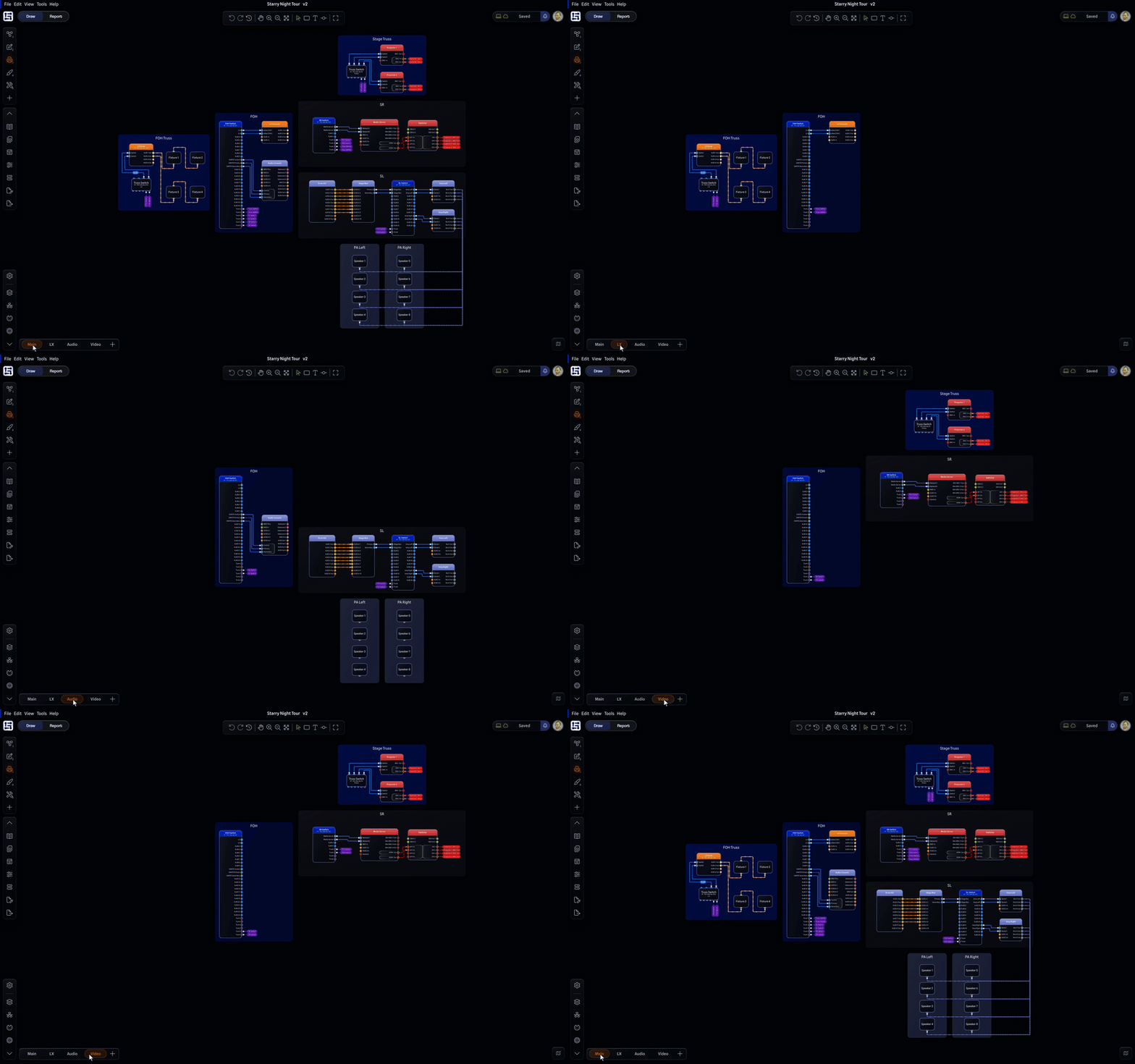
Your drawings can now be split across multiple pages. Pages are like viewports into your drawing: every project has a Main page that shows all of your layers, and you can add as many extra pages as you need, each showing only the layers you assign to it. For example, you could keep one page for lighting and another for audio, all within the same project.
A layer can appear on as many pages as you like, so you can mix and match. A switch shared between Audio and Video can live on your Network layer, and both your Audio and Video pages can include the Network layer alongside their own layers.
Pages appear as tabs along the bottom of the canvas. Click the add button to create a new page, and right-click any page to choose its layers, rename it, move it left or right, or delete it. Choosing layers opens the new Page Layers dialog, where you click a layer to add it to or remove it from the page, or create a New Layer directly. Deleting a page never deletes its layers or anything in your drawing so you are free to reorganize your pages without losing any content.
The rest of the Draw Page follows the current page you are on. The layer dropdown in the Draw Toolbar only lists the layers on the current page, a new layer created on a custom page is added to that page, and your selected layer is remembered for each page (no longer a global remembered setting). Zoom to Fit, the Mini Map and selection all follow the current page, and jumping to an item that is not on the current page switches to the first page that shows it. Pages also appear in the URL, just like reports, so you can bookmark a specific page and come straight back to it.
Creating and editing additional pages is a Pro feature.
Sheets and Drawing Settings
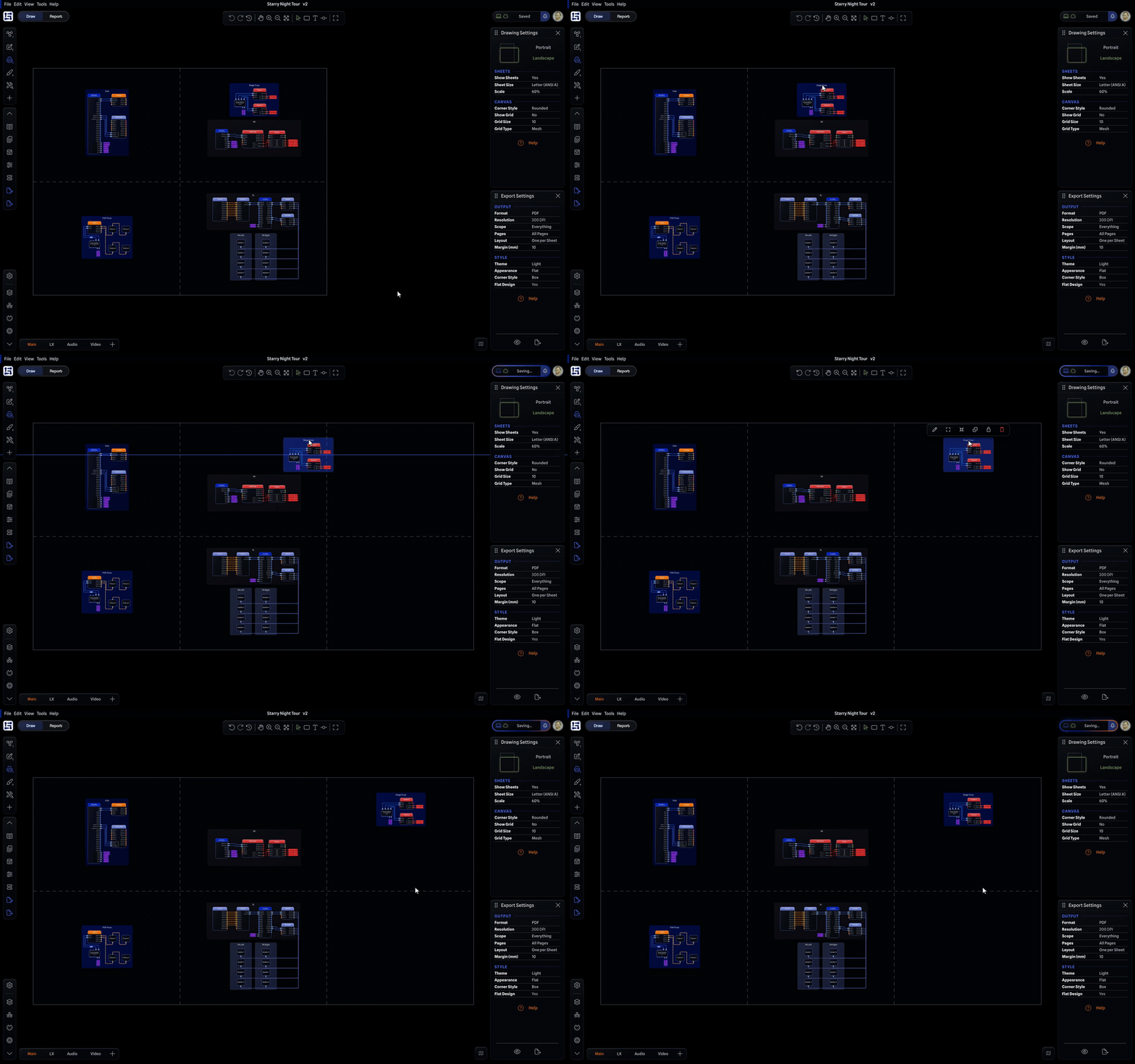
Sheets are the pieces of paper laid out on a page. They are drawn right on the canvas so you can easily preview what the the final export will look like, and they add and remove themselves as you move items around.
The new Drawing Settings pane controls the sheets for the current page. Choose Landscape or Portrait, pick a Sheet Size that matches your real paper (or choose Custom and enter your own width and height in millimetres), and set the Scale to fit more or less of your drawing on each sheet. Show Sheets turns the sheet outlines on or off on the canvas for easy reference. The pane also holds shortcuts to common drawing settings: Corner Style, Show Grid, Grid Size and Grid Type.
Every page can follow the Main page's sheet settings or use its own. Click Using Main Settings to switch a page to Using Page Settings, and click it again to go back to following Main. This lets you keep every page consistent, or print different pages to different paper sizes to fit your needs.
Changing sheet settings is a Pro feature.
Export Settings and Export Preview
The new Export Settings pane holds everything about how your drawing is exported, without changing your project or drawing itself:
Format: PDF, JPG, PNG or SVG. PDF is new and replaces the old Print export. Like SVG it is drawn as vectors, so it stays sharp at any size.
Resolution: how sharp a JPG or PNG export is, from 72 up to 600 DPI. Larger values produce higher quality but bigger files, and some browsers have limits on the maximum resolution they support.
Scope: export Everything, or Selection Only to export just a subset of your drawing.
Pages: export the Current Page, or All Pages at once. A PDF puts every sheet into one multi-page PDF, while the other formats download a zip file with a separate file for each page and sheet.
Layout: Fit to Drawing sizes the export around your whole drawing, Fit to One Sheet scales the drawing to fit on a single sheet, and One per Sheet exports every sheet at the page's Scale, exactly as you see it on the canvas.
Margin (mm): clear space around the edge of the export to account for printer margins.
The Style rows let you override how parts of the drawing looks without affecting your project in the app. For example, you can work in dark mode with rounded corners but export in light mode and boxed corners. You can also set a different appearance (for example Draft Appearance) and remove gradients with the flat design option.
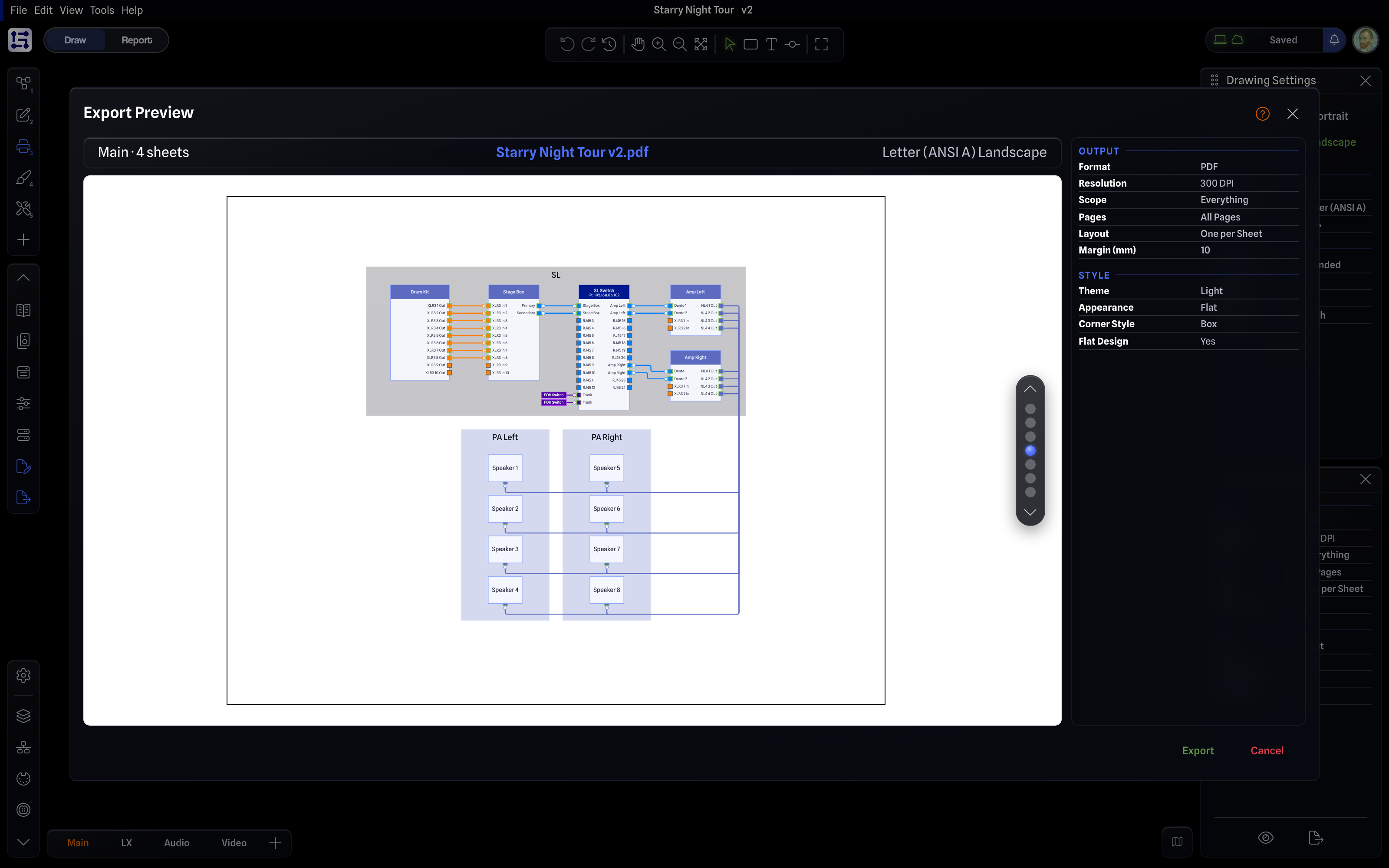
Click Preview to open the new Export Preview. It shows every page and sheet your export will produce, which you can scroll through with your mouse wheel or arrow keys. You can change the export settings in the preview to see how it will affect the final export. Click Export when you are happy with it.
The Draw Page comes with a new Print layout slot that opens both new panes, and All Closed has moved to slot four. Drawing Settings and Export Settings have been added to all the regular pane places, and like other panes can be mixed and matched freely.
If you have customized your Draw Page layouts, choose View > Reset Layout on the Draw Page to pull in the new Print layout. Resetting removes your saved layouts for the Draw Page.
Changing export settings is a Pro feature. Starter users can still export, but are limited to the default settings for PDF and JPG as before.
Quick Export
The existing export and print options are now quick exports. Drawing (PDF), Drawing (JPG), Drawing (PNG) and Drawing (SVG) in the File menu export the current page in one click using a fixed set of default settings, and never change your saved Export Settings. Drawing (PDF) is new to the menu, and the Print button in the Draw Toolbar has been replaced with Export to PDF. Print in the File menu is now Print Report and is used for reports only. To print your drawing, export a PDF with Layout set to Fit to One Sheet or One per Sheet to ensure it matches the intended page layout.
Gear Groups and Text Boxes Upgrade
Gear Groups and Text Boxes are now saved to the project database, just like gear and connections, instead of only living in the drawing data-less. Their labels, colours, locks, sizing and text box opacity now sync with the rest of your project like everything else and means the entire drawing is now powered by the same sync and database engine that drives the rest of your project.
In practical terms, this means Gear Groups and Text Boxes now support layers. You can move them to another layer with Edit Layer, show or hide them, have them follow their layer's colour, and most importantly, allows you to move them between pages. Gear and connections also now keep track of which Gear Group they belong to, so that information can appear in Item Properties and in your reports. This also paves the way for future expansion into re-usable collections of gear within a group.
New Port Options
New Connectors
SMA
RP-SMA
Locking DC 2-Pin
Locking DC 3-Pin
Locking DC 4-Pin
Aviation 3-Pin
Molex Micro-Fit 3.0 4-Pin
SMA and RP-SMA join BNC, F Type and N Type in the Coax group. Molex Micro-Fit 3.0 4-Pin is in the Power group with its own default colour.
To keep the connector selector easier to browse, we have also added two new groups. The new DC Power group, after CEE, holds DC Barrel and the three new Locking DC connectors, so DC Barrel has moved out of the Power group. The new Aviation group, after DIN, holds Aviation 3-Pin along with the existing Aviation 4-Pin, which has moved there from Other.
New Signal Types
Nexus (Audio)
X-Talk (Networking)
Connector Compatibility
These connectors can now connect directly to Schuko, BS 1363 and NEMA 5-15, the same as DC Barrel. The external power supply is treated as the cable, so a device powered this way connects straight to the outlet feeding it without needing an adapter.
Locking DC 2-Pin
Locking DC 3-Pin
Locking DC 4-Pin
Molex Micro-Fit 3.0 4-Pin
These connectors can now all connect to one another using an adapter. Previously F Type and N Type could only connect to Generic ports.
BNC
F Type
N Type
SMA
RP-SMA
Default Library Updates
7thSense Design Ltd
Showmaster LE
Advantech
ADAM-6066
EKI-7716G-4F4CI-AE
APC
SMX1500RMI2UNC
SMX3000RMHV2UNC
SRT6KRMXLI-6W
SRV6KRILRK
Apple
iPad (A16)
ATEN
PE6108G
PE6216G
PE8216G
PE8324G
Ayrton
Diablo
Zonda 3 Wash
Beadlight
Racklight
Blackmagic Design
Camera Converter
Multiview 16
Studio Camera HD
Talkback Converter 4k
Digital Audio Labs
DA-8
Pro Solo
Pro-16
Eaton
9E1000IR
9E2000IR
9E3000IR
9SX1500IR
Elation Lighting
Aria X2 IPC
Aria X2 IPC Bridge
SIXBAR 1000
Enjoy Tech
Event Light System
HHP Base Station
Web Server
ENTTEC
S-PLAY LITE
S-PLAY MINI
S-Play SP-1
Estap
M449ALC
ETC
ColorSource Spot
F-DriveRX
FD-RX-RPSU-56/1800
FD-RX-RPSU-56/2800
Source Four Mini LED Canopy 120 V
Source Four Mini LED Canopy 230 V
Source Four Mini LED F-Drive Canopy
Source Four Mini LED F-Drive Portable
Source Four Mini LED Portable 120 V
Source Four Mini LED Portable EU
Source Four Mini LED Portable UK
EZCOO
EZ-SP12H2
EZ-SP12HAS
EZ-SP12HAS-PRO
Flanders Scientific
XMP270
GearConnect
NL4 to NL8
Hokuyo
UST-20LX
inoage GmbH
LUNA 8
Inveo
Nano Digital Input
Nano Digital Input PoE
IPORT
CONNECT PoE+ Adapter
CONNECT PoE+ Network Adapter
JBL
1300Z
140Z
Kling & Freitag
CA 1001 - SP
CA 1201 - SP
CA 1215-6 - SP
CA 1215-9 - SP
CA 1515-6 - SP
CA 1515-9 - SP
L-Acoustics
LA1.16i
LA7.16i
Lab Gruppen
LMX 48
LMX 88
Lawo
A__stage 48
A__stage 64
A__stage 80
Linea Research
44C06
Look Solutions
Unique 2.1
Mean Well
HDR-60-24
HDR-60-48
MINISFORUM
MS-01
Netgear
M4350-16C
Obsidian Control Systems
DA2410V
EN6 IP
EN6D
EP1D
NS8
NS8 IP
RDM 6XL
RDM6 IP
RP2
Powersoft
Mezzo 604 AD
Quattrocanali 4804 DSP+D
T604
QSC
Core 8 Flex
RME
Digiface Dante
Fireface 802 FS
MADIface XT II
Robert Juliat
Dalis 860
Samsung
Galaxy Tab S9 Ultra
Schneider Electric
A9C20732
RM22TG20
SDAPO
GPD2CBT-20V
TP-Link
LS1210GP
TL-POE10R
Uniguest
UGC70
VIOSO
CK_FDN-4
CK_W76-4
Visual Productions BV
CueCore
Improvements
The Layer Manager now shows how many items are on each layer and which pages each layer is on, and you can change a layer's pages right from the Layer Manager.
You can now change a layer's colour even when some of the items on that layer are locked. Locked items that follow their layer colour update to the new colour, where previously the change was not allowed.
Connections have a new Show Label and Hide Label option that replaces Add Label and Remove Label, so it is always clear whether a connection's label is shown or hidden. The option is disabled while a Connection Tag is active.
Item Properties now shows the Type of the selected item, and a new Info section shows which Gear Group a gear or connection belongs to.
Gear Groups now appear in reports, with a new Gear Group column for gear and connection reports that you can also pick in Group by to group your report by Gear Group.
Gear Groups without a label are now numbered (Gear Group 1, Gear Group 2 and so on), so you can tell them apart more easily in reports, menus and the Undo Stack.
Improved how gear is automatically added to gear groups, for more predictable behaviour.
Drawing a new connection between two gear in the same Gear Group now adds the connection to that Gear Group straight away, instead of waiting for the next move.
Undo and redo now let you know when the change they apply is on a page you are not currently viewing, or on a hidden layer.
Project, report and page codes in the URL are now always upper case, for consistency and easier reading.
Pro feature labels have been shortened from "(Pro feature)" to "(Pro)".
The use of "NA" and "-" is now consistent across reports, menus and options. NA means a value cannot be set, while "-" means there is no value yet but one can be set. In reports, cells with no value are left empty instead.
Generic connectors now show as Generic instead of NA. For example, a connection that used to read NA to RJ45 now reads Generic to RJ45.
Help dialogs are now taller to fit more content, and additional help dialogs were added for Drawing Settings and Export Settings to help explain the workflow and options.
Reduced the colour on some additional buttons, in line with the rest of the v2 design.
Editing a setting from Item Settings now saves it to your project database before updating the drawing, for the few settings that did not already work this way. This prevents rare cases where your project data could get out of sync with the items in your drawing.
Local Mode now lets you edit the safe settings of locked gear, such as its Gear Group, just like you can with Local Mode turned off. This allows gear to be added and removed from Gear Groups, even when locked.
Improved sync performance for project settings that did not change between syncs.
Importing a project no longer saves it part way through the import.
Improved how project data is cleaned up when a network failure interrupts a save or sync.
Further hardening to make sure a project is never synced while it is still opening.
Added extra server side protection against connections being assigned a layer from a different project.
Connections now keep their own layer when the gear they connect to moves to a different layer instead of following the gear's layer.
Added extra server side validation to some project settings so values outside the ranges the app allows can no longer be saved.
Input limits in the app now match the server exactly, so values the server would reject, such as an out of range grid size or cable inventory quantity, can no longer be entered.
Bug Fixes
Fixed projects imported while offline not always being imported as a new project. Since there is no server to check against while offline, an offline import now always creates a new project.
Fixed a validation error that could appear when deleting items that had already been deleted from the server while Local Mode was turned off.
Fixed changing the layer of locked gear that follows its layer colour not updating the gear correctly.
Fixed changing a layer colour not updating every item that uses that colour on the server.
Fixed selection exports not including the expansion card groupings in gear.
Fixed the corner radius on some pop ups not matching the new v2 style.
Fixed undoing a layer visibility change not showing the hidden gear in the drawing again.
Fixed typos in Undo Stack entries.
Fixed rare cases where a Project Settings could fail to update and then show the wrong value.
Fixed Gear Groups snapping back to auto size and fighting with you after the first resize.
Fixed clicking to select an item sometimes moving it slightly by mistake.
Fixed cases where expansion card groups could be duplicated or detached from their gear during certain undo and redo operations.
Fixed alignment issues with icons and text in buttons.
Fixed the Selection Toolbar staying visible on top of dialogs and other menus.
Fixed being able to create layers from the Draw Toolbar while the project was locked or in read only mode. The server already rejected these layers when syncing.
Fixed rare cases where generating cables in the Cable Inventory Manager failed to assign some connections because there was not enough stock. Stock is now raised before cables are assigned.
Fixed connections with no assigned cable showing a red 0 for cable inventory remaining.
Fixed text spacing issues in the Report Toolbar on small screens.
Fixed connections drawn in bulk sitting behind the Gear Group they were drawn on top of until the next save.
Fixed clipping issues in help dialogs.
Fixed the drawing not unlocking for editing when going straight back to a project right after reactivating a Team subscription.
Fixed a sync failing when two connections swapped ports with each other in the same sync.
Fixed changes to Project Settings, preferences or reports made while a sync was running sometimes never being saved to the server.